# Entra AD Host SYNC
# Sadevio Configuration
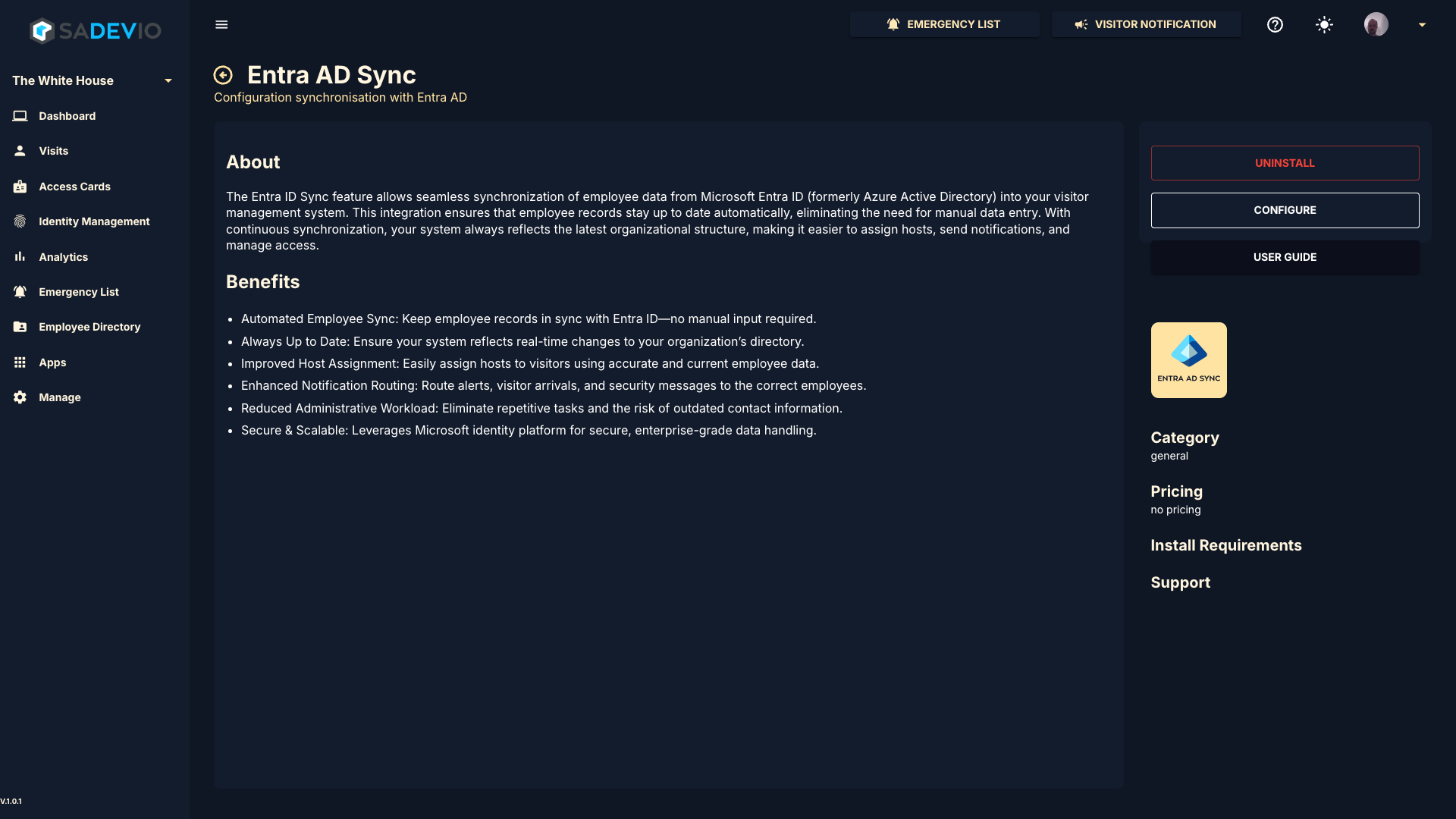
To activate the sadevio Entra AD sso saml login to your application and go to Apps and select Entra AD SSO SAML
Install the application.
[](https://help.sadevio.com/uploads/images/gallery/2025-10/image.png)
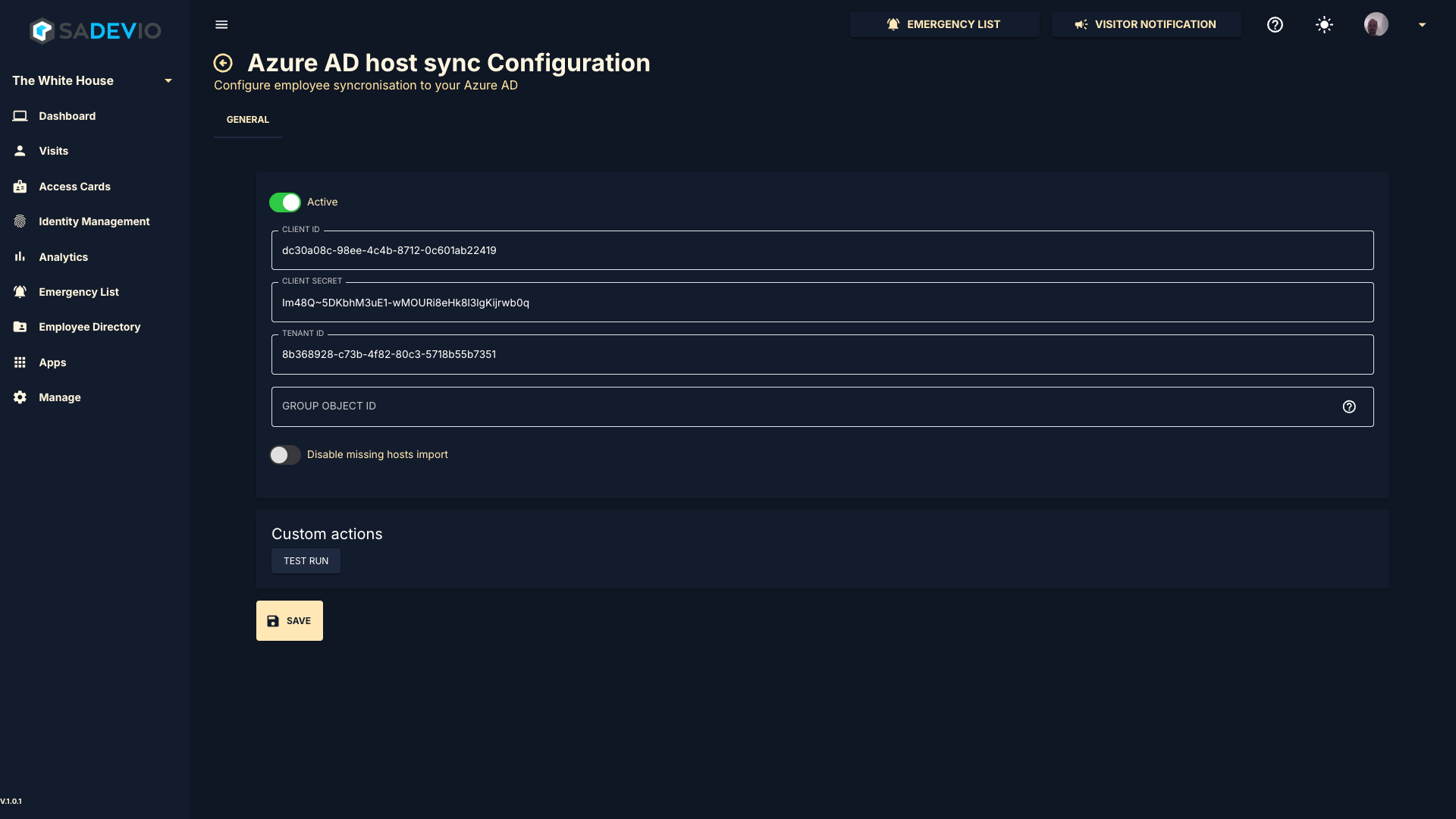
#### Azure AD credentials
Copy the needed information from your admin portal
[](https://help.sadevio.com/uploads/images/gallery/2025-10/dP6image.png)
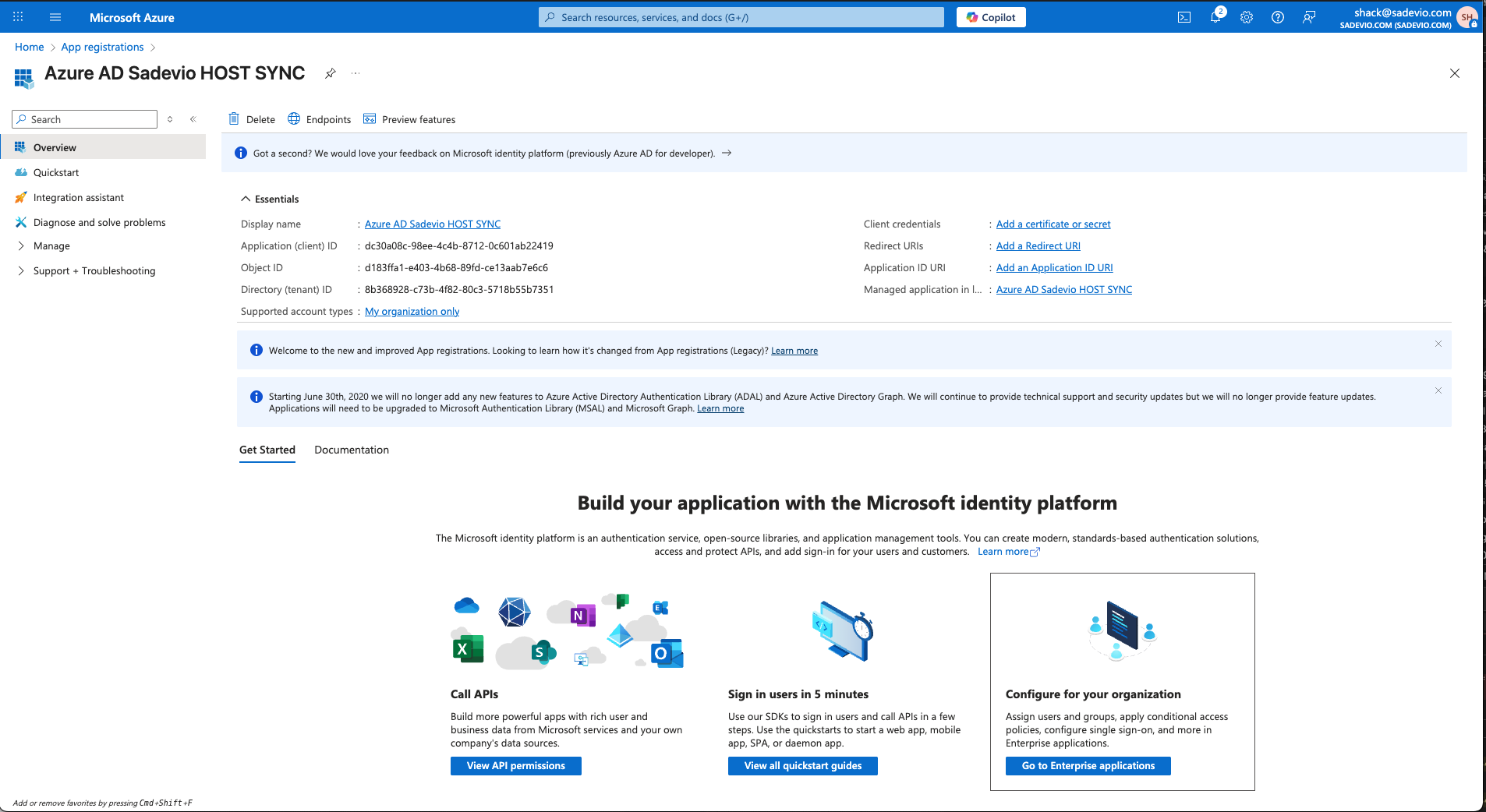
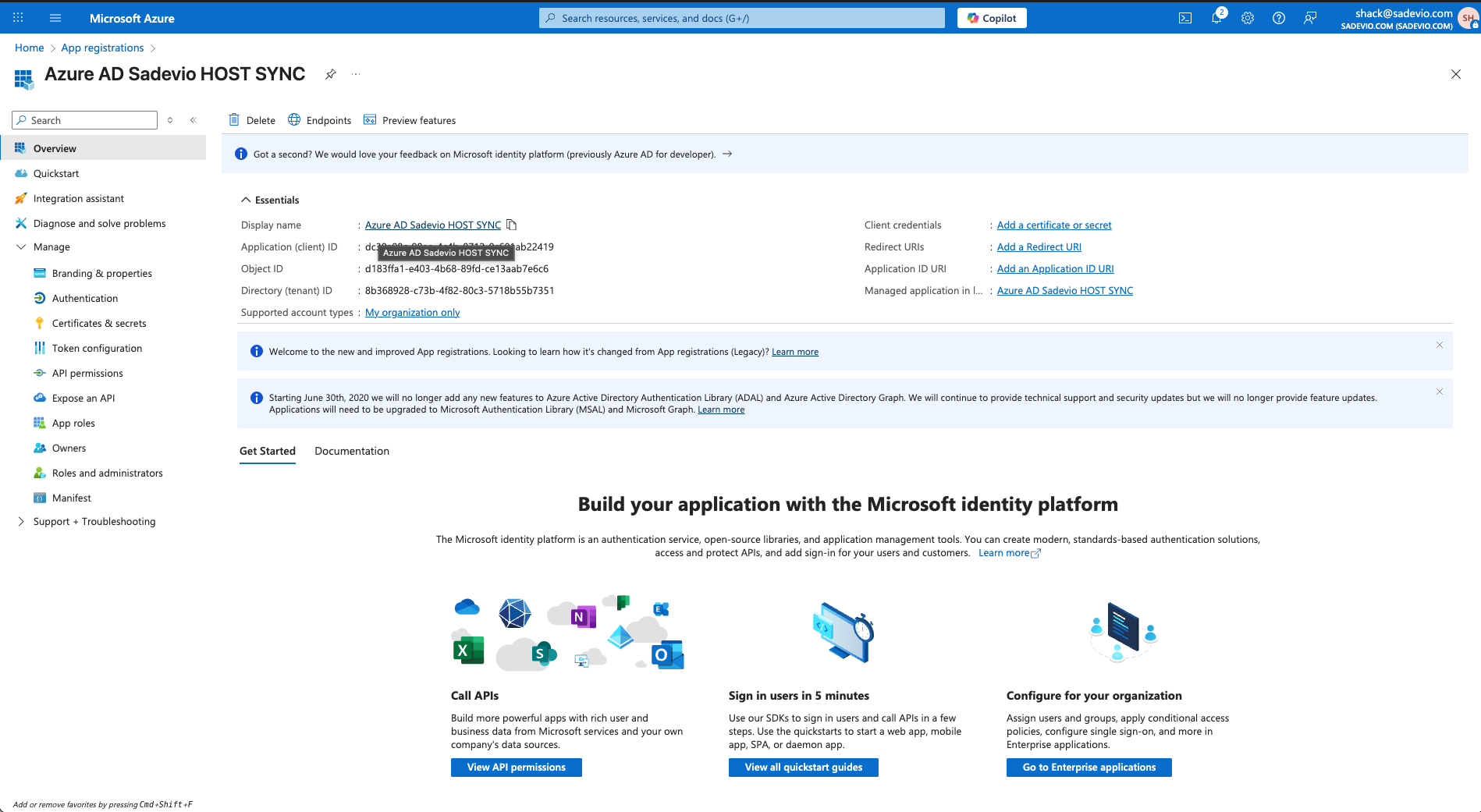
#### Application ID & Tenant ID
Copy the Application (client) ID and the Directory (tenant) ID
[](https://help.sadevio.com/uploads/images/gallery/2025-10/screenshot-2025-10-07-at-11-45-24-am.png)
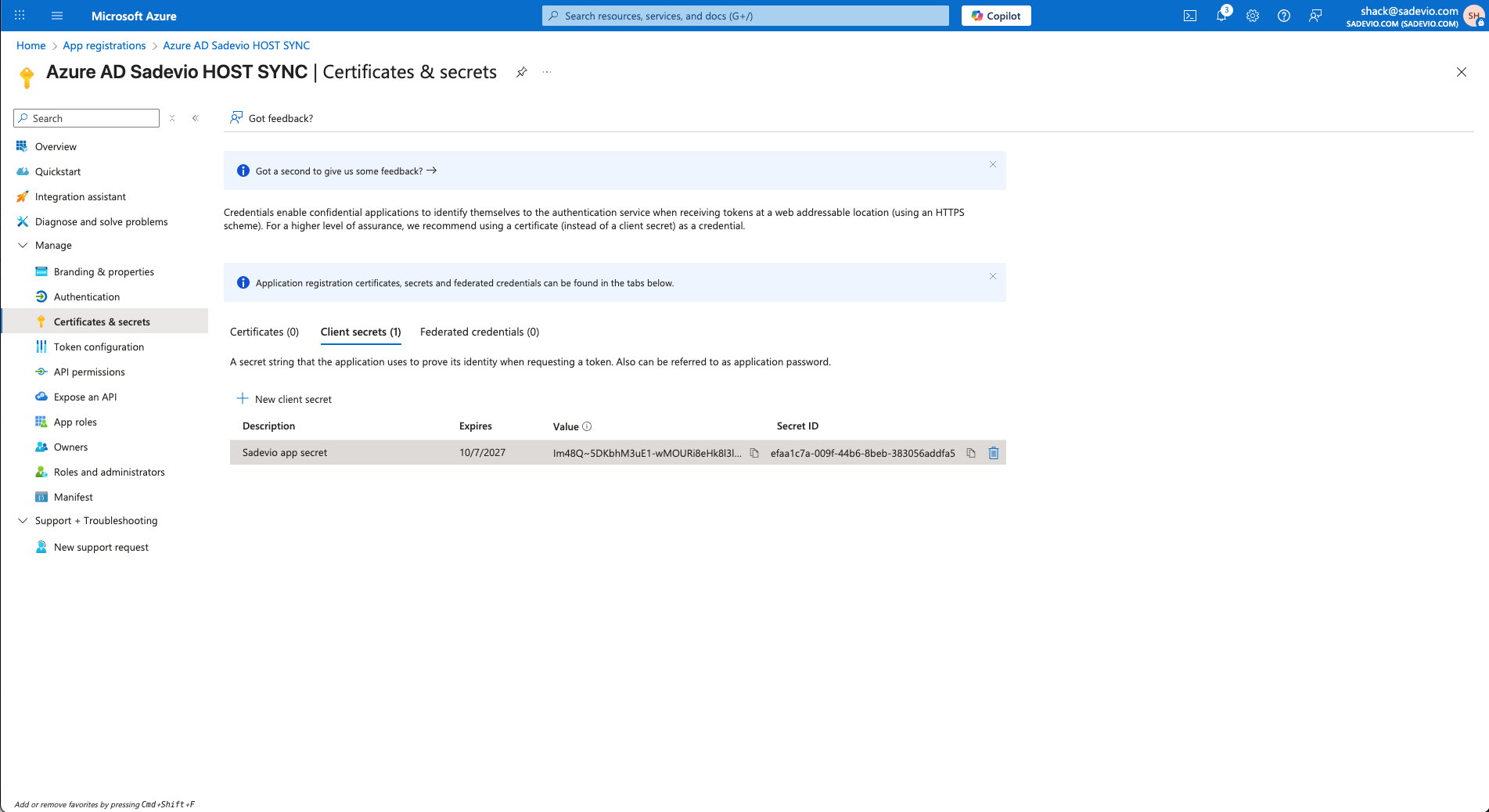
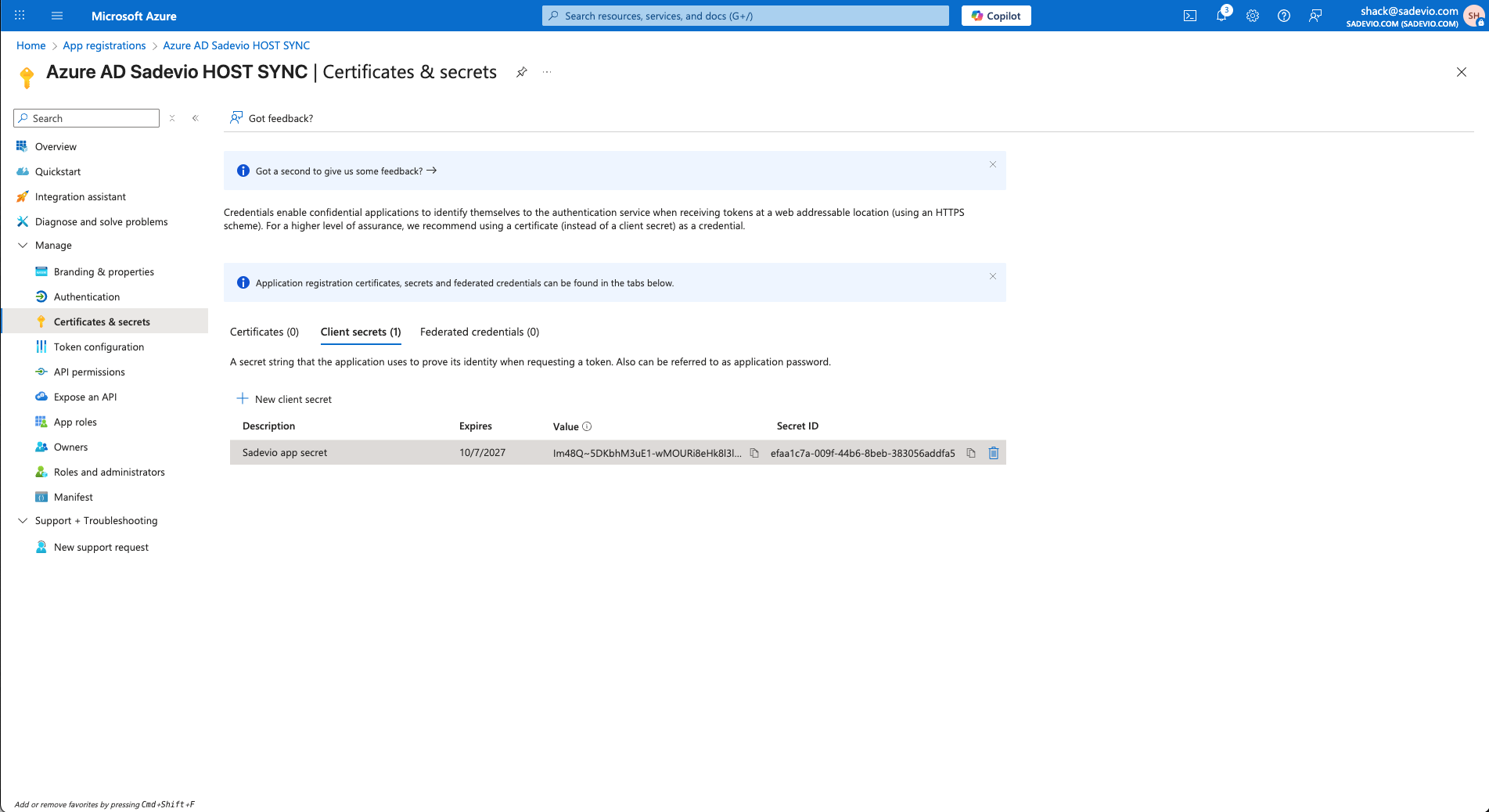
#### Application Secret
Copy the value part of your client secret
[](https://help.sadevio.com/uploads/images/gallery/2025-10/screenshot-2025-10-07-at-11-49-25-am.png)
#### Disable missing hosts
The system will download the employee information from AD and all employees which are missing in this information will be disabled within SADEVIO
#### Test run configuration
The test run will give you a good indication if everything worked fine and your configuration is correct.
# Azure Entra ID (Azure AD) – Employee syncronistaion
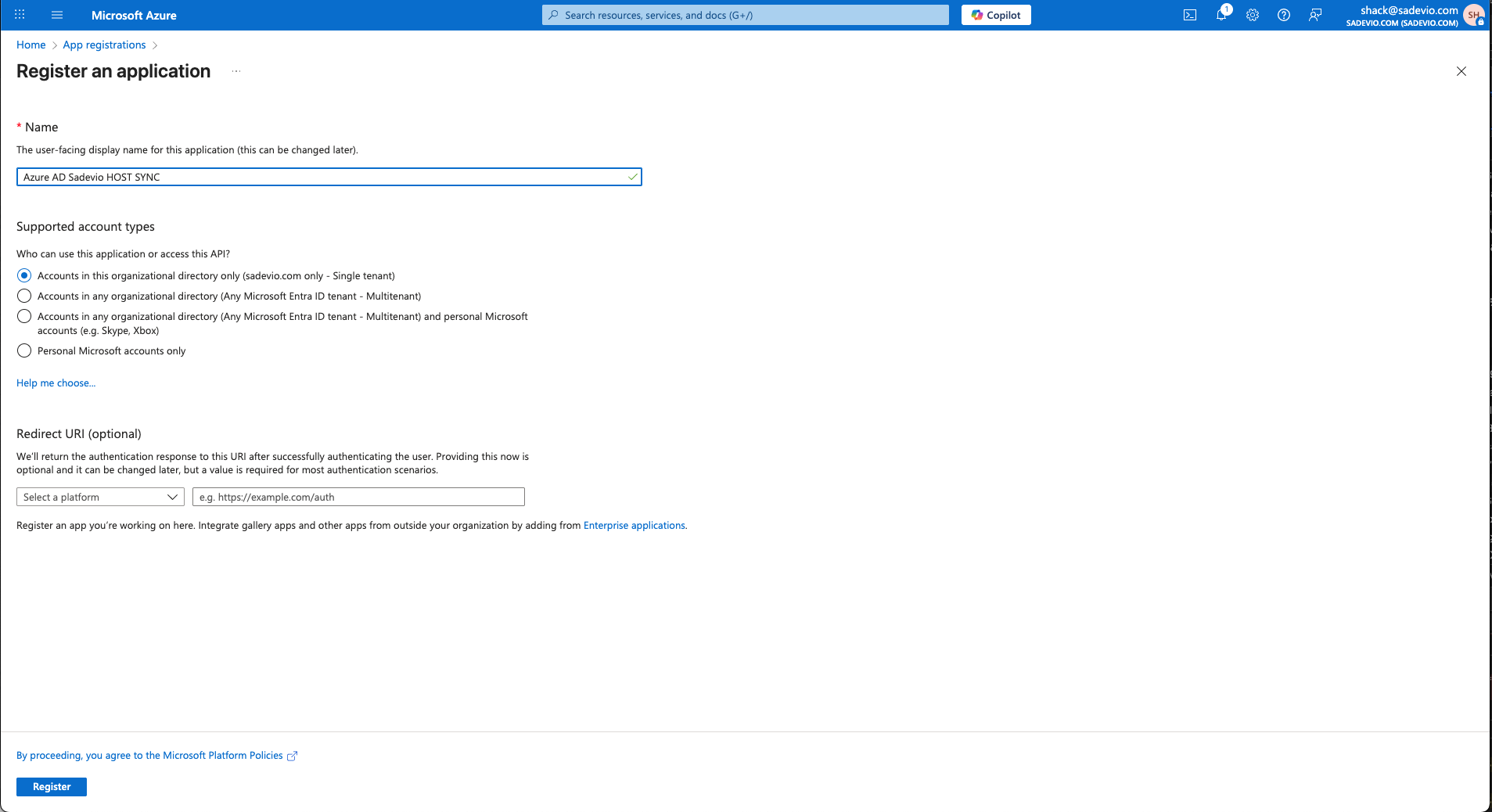
### Step 1: Create an Enterprise Application
1. Go to [https://entra.microsoft.com](https://entra.microsoft.com/)
2. In the left menu, click **"App registrations"**
3. Click **"+ New registration"**
4. Select **"Create your own application"**
5. Enter a name (e.g. `Sadevio Employee SYNC`)
6. Click **Register**
[](https://help.sadevio.com/uploads/images/gallery/2025-10/screenshot-2025-10-07-at-11-44-26-am.png)
[](https://help.sadevio.com/uploads/images/gallery/2025-10/screenshot-2025-10-07-at-11-46-30-am.png)
1.
### Step 2: Client Secret
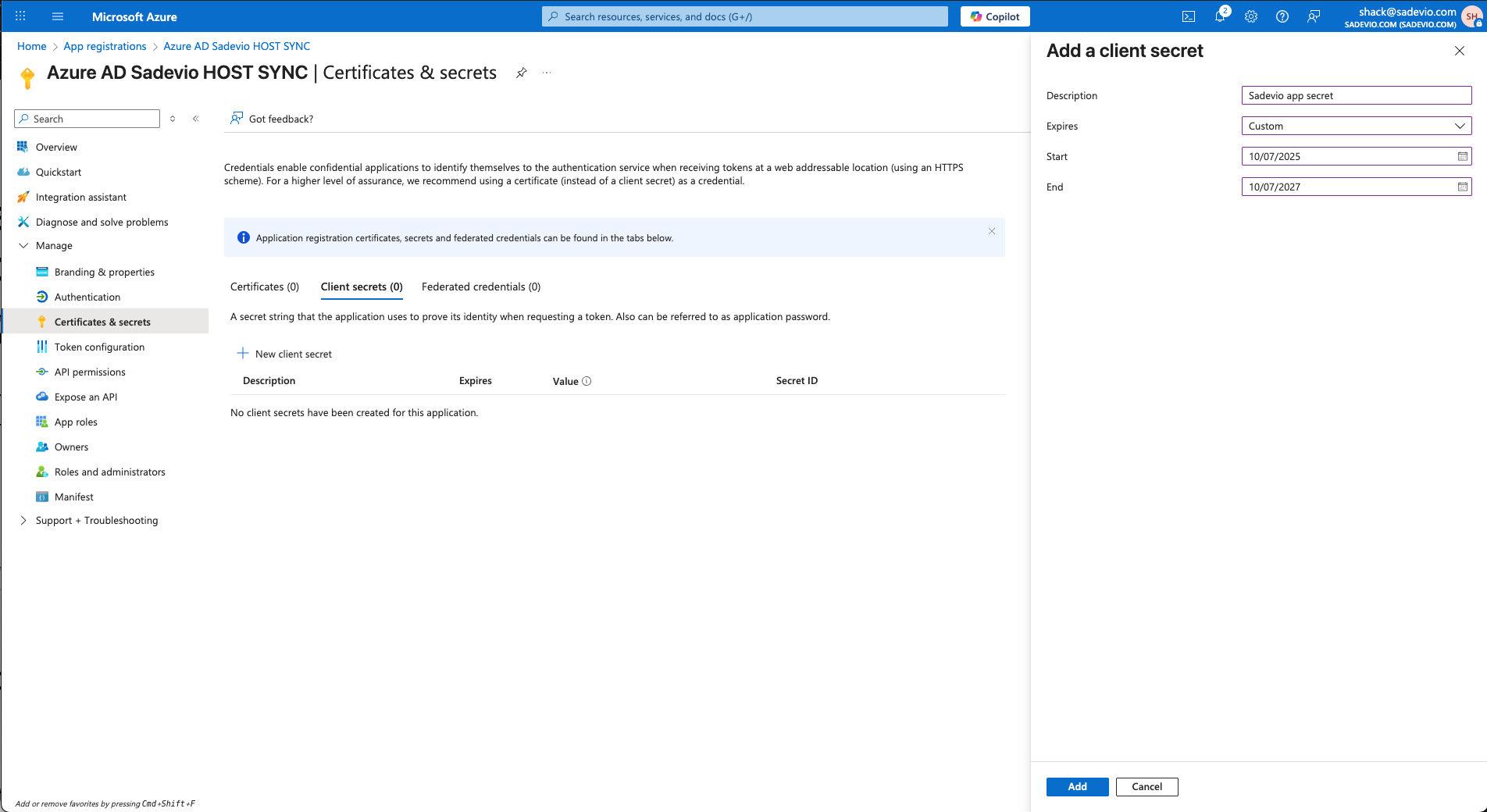
1. In the new app, go to **"Manage" -> "Certificates & secrets"**
2. Select **New client secret**
3. Give it a name which you like and an expiration date.
[](https://help.sadevio.com/uploads/images/gallery/2025-10/screenshot-2025-10-07-at-11-47-15-am.png)
You will need to copy the **"value" part to sadevio.**
[](https://help.sadevio.com/uploads/images/gallery/2025-10/o03screenshot-2025-10-07-at-11-49-25-am.png)
### Step 3: Application permissions
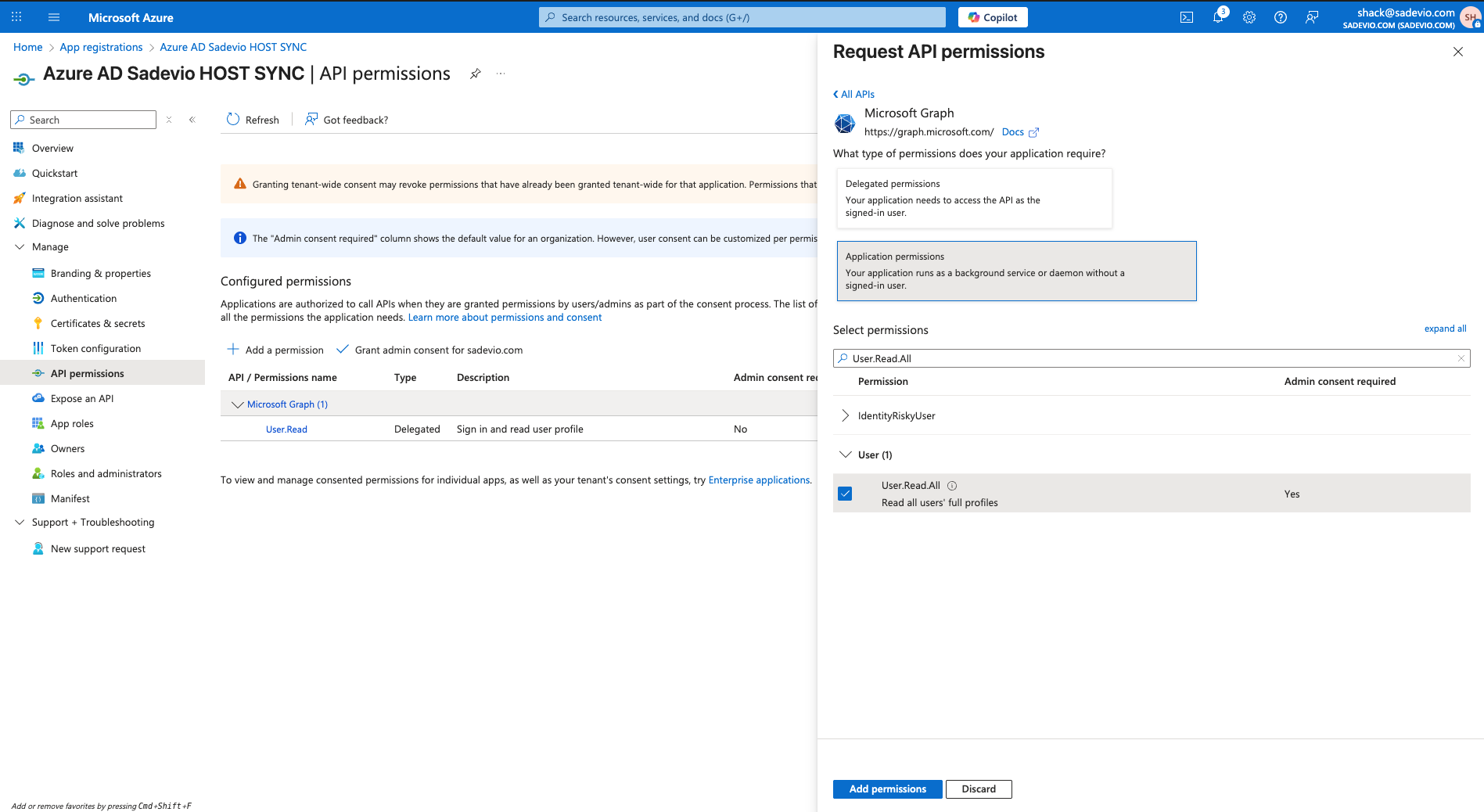
1. In the new app, go to **"Manage" -> "API permissions"**
2. Select **"Add a permission"**
3. Select Microsoft Graph
4. Select Application permission
5. Add permission **User.Read.All**
6. Select **"Add permission"**
[](https://help.sadevio.com/uploads/images/gallery/2025-10/screenshot-2025-10-07-at-11-52-55-am.png)
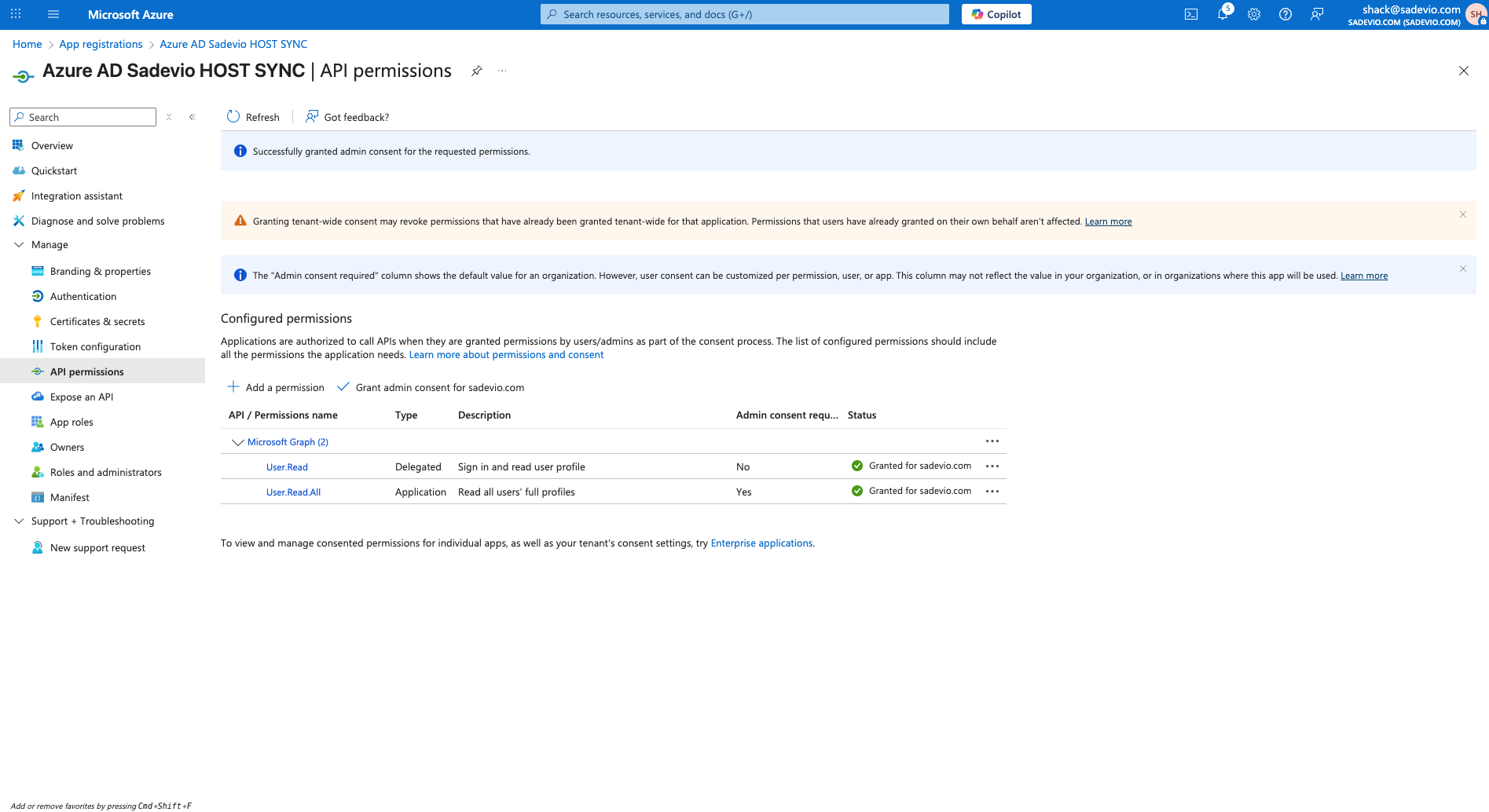
Select now **"Grant admin consent for youDomain.com"**
[](https://help.sadevio.com/uploads/images/gallery/2025-10/screenshot-2025-10-07-at-11-54-24-am.png)