LDAP Authentication
The LDAP Authentication feature allows your application to authenticate users directly against an external LDAP (Lightweight Directory Access Protocol) server. By configuring your organization’s LDAP server, users can log in using their existing corporate credentials without the need for separate accounts. This ensures centralized identity management while maintaining consistency with your organization’s IT infrastructure. The integration supports secure communication and flexible configuration to align with various directory structures and authentication policies.
LDAP Login Configuration
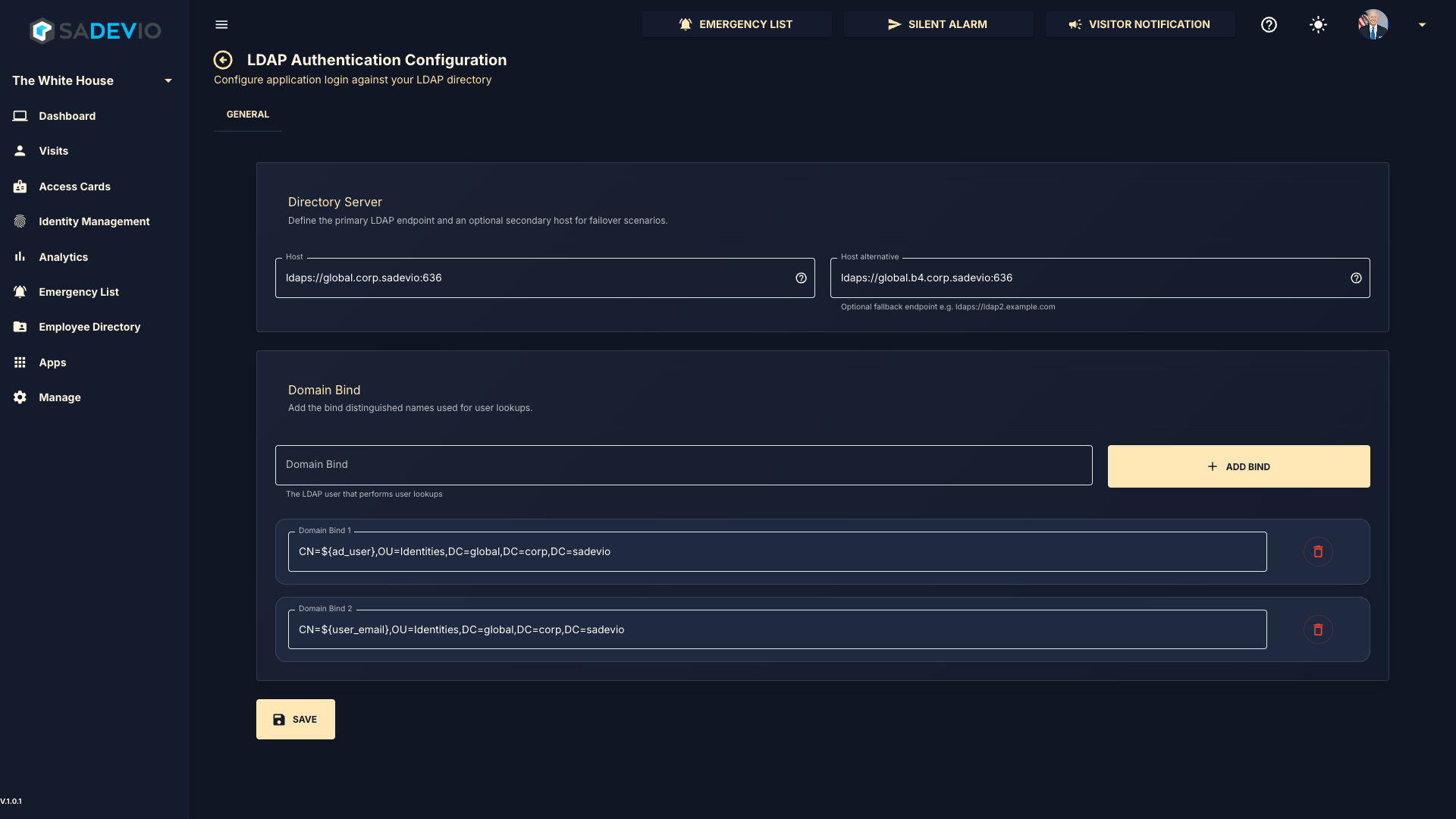
Directory Server
In the top section, enter your LDAP server address using either the DNS name or IP address, followed by the port.
Example:ldaps://global.corp.sadevio:636
You may also define an optional secondary (fallback) LDAP server for redundancy.
Domain Bind Configuration
In the bottom section, you can configure one or more Domain Bind entries. These are used to construct the distinguished name (DN) for user lookup during authentication.
The system supports the following user identification formats:
- Down-Level Logon Name
NetBIOSDomainName\sAMAccountName
Example:domain\usernameorusername@domain - User Principal Name (UPN)
Example:username@abc.com - Distinguished Name (DN)
Example:CN=username,OU=Users,DC=abc,DC=com - Object SID
Example:S-1-5-21-3623811015-3361044348-30300820-1013
Dynamic User Variables
You can use placeholders in your Domain Bind configuration to dynamically insert user values:
${user_name}→ Inserts the username${user_email}→ Inserts the user’s email address${ad_user}→ Inserts the user’s ad user field
Example Domain Bind
Notes
- Multiple Domain Bind entries can be added to support different login formats.
- The system will attempt each bind configuration until authentication succeeds.
- Ensure that your LDAP server supports LDAPS (recommended for secure communication)
LDAP Authentication on-premise
When hosting the system on-premise, additional configuration is required to enable LDAP / Active Directory authentication.
Tomcat Service Account
The application server (Tomcat) must run under a user account that has permission to query the Active Directory.
- Configure the Tomcat service to run as a dedicated Active Directory user
- Ensure this user has:
- Read access to the directory
- Permission to perform user lookups
LDAPS Certificate Configuration
If you are using LDAPS (recommended), the LDAP server’s SSL certificate must be trusted by Java.
You must import the LDAP server certificate into the Java keystore (truststore) used by Tomcat.
Steps to Import Certificate
- Export the SSL certificate from your LDAP / Domain Controller
- Import the certificate into the Java keystore using:
-alias ldap-cert \
-file ldap_certificate.crt \
-keystore $JAVA_HOME/lib/security/cacerts
- Restart Tomcat after importing the certificate
Steps Using Portecle
- Download and start Portecle
- Open the Java keystore:
- Path:
$JAVA_HOME/lib/security/cacerts
- Path:
- Enter the keystore password
(Note: the default passwordcacertsis often changed in secure environments) - Import the LDAP / Active Directory certificate:
- Go to Tools → Import Trusted Certificate
- Select your exported certificate file (e.g.,
.crt)
- Assign an alias (e.g.,
ldap-cert) - Save the keystore
- Restart Tomcat
Important Notes
- The default Java keystore password (
cacerts) is often changed in secure environments
→ Please confirm the correct password with your system administrator - If the certificate is not trusted:
- LDAPS connections will fail
- Authentication will not work
- Ensure the correct Java runtime is used (the one running Tomcat)
Recommendation
- Always use LDAPS (port 636) instead of plain LDAP for secure communication
- Use a dedicated service account rather than a personal user account