# LDAP Authentication
# LDAP Login Configuration
### **Directory Server**
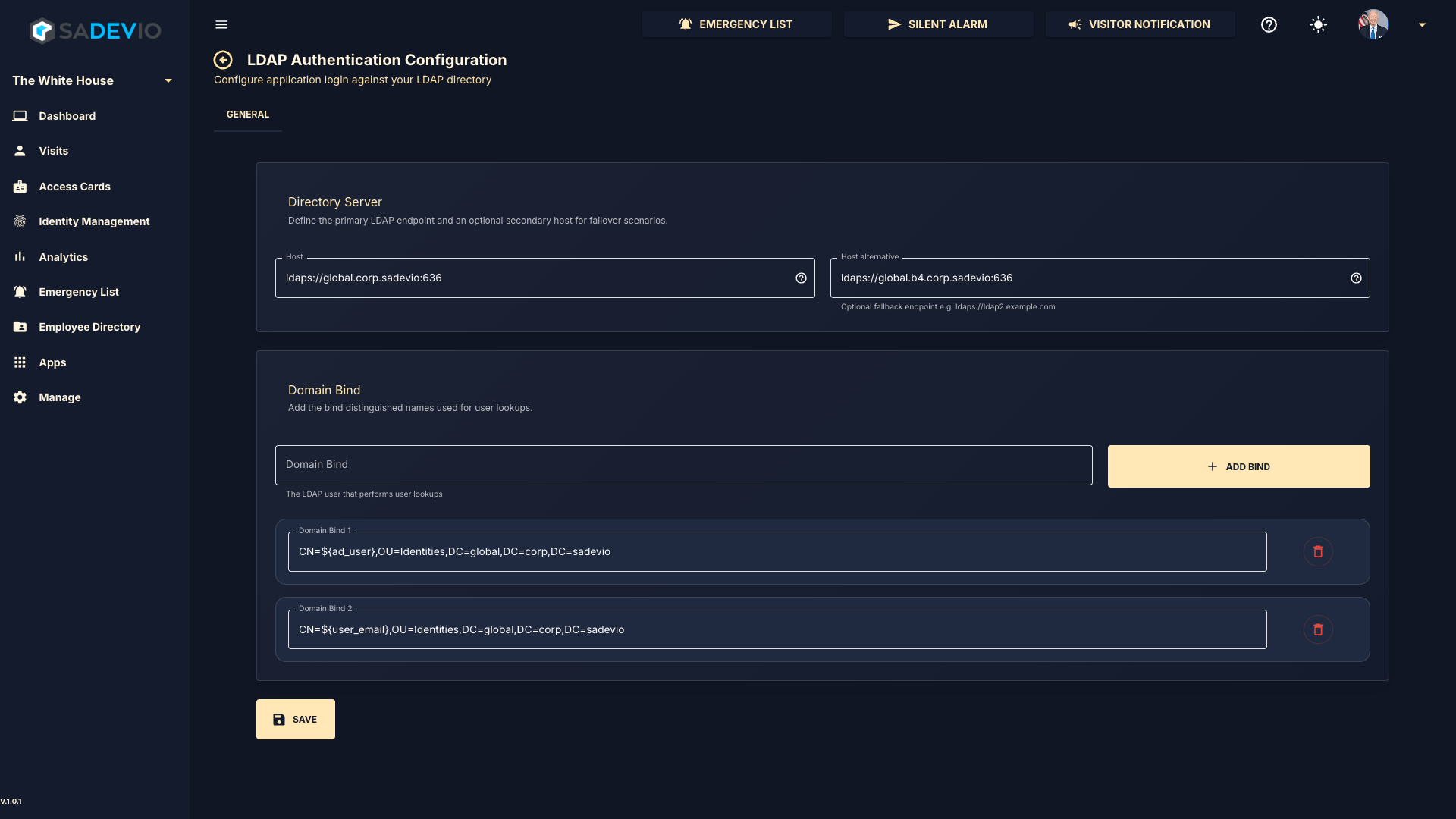
In the top section, enter your LDAP server address using either the DNS name or IP address, followed by the port.
**Example:**
`ldaps://global.corp.sadevio:636`
You may also define an optional secondary (fallback) LDAP server for redundancy.
---
### **Domain Bind Configuration**
In the bottom section, you can configure one or more **Domain Bind** entries. These are used to construct the distinguished name (DN) for user lookup during authentication.
The system supports the following user identification formats:
- **Down-Level Logon Name**
`NetBIOSDomainName\sAMAccountName`
Example: `domain\username` or `username@domain`
- **User Principal Name (UPN)**
Example: `username@abc.com`
- **Distinguished Name (DN)**
Example: `CN=username,OU=Users,DC=abc,DC=com`
- **Object SID**
Example: `S-1-5-21-3623811015-3361044348-30300820-1013`
---
### **Dynamic User Variables**
You can use placeholders in your Domain Bind configuration to dynamically insert user values:
- `${user_name}` → Inserts the username
- `${user_email}` → Inserts the user’s email address
- `${ad_user}` → Inserts the user’s ad user field
---
### **Example Domain Bind**
---
### **Notes**
- Multiple Domain Bind entries can be added to support different login formats.
- The system will attempt each bind configuration until authentication succeeds.
- Ensure that your LDAP server supports LDAPS (recommended for secure communication)
[](https://help.sadevio.com/uploads/images/gallery/2026-04/image.png)
# LDAP Authentication on-premise
When hosting the system on-premise, additional configuration is required to enable LDAP / Active Directory authentication.
---
### **Tomcat Service Account**
The application server (Tomcat) must run under a user account that has permission to query the Active Directory.
- Configure the Tomcat service to run as a dedicated **Active Directory user**
- Ensure this user has:
- Read access to the directory
- Permission to perform user lookups
---
### **LDAPS Certificate Configuration**
If you are using **LDAPS (recommended)**, the LDAP server’s SSL certificate must be trusted by Java.
You must import the LDAP server certificate into the Java **keystore (truststore)** used by Tomcat.
---
### **Steps to Import Certificate**
1. Export the SSL certificate from your LDAP / Domain Controller
2. Import the certificate into the Java keystore using:
3. Restart Tomcat after importing the certificate
---
### **Steps Using Portecle**
1. Download and start **Portecle**
2. Open the Java keystore:
- Path:
`$JAVA_HOME/lib/security/cacerts`
3. Enter the keystore password
*(Note: the default password `cacerts` is often changed in secure environments)*
4. Import the LDAP / Active Directory certificate:
- Go to **Tools → Import Trusted Certificate**
- Select your exported certificate file (e.g., `.crt`)
5. Assign an alias (e.g., `ldap-cert`)
6. Save the keystore
7. Restart Tomcat
---
### **Important Notes**
- The default Java keystore password (`cacerts`) is **often changed** in secure environments
→ Please confirm the correct password with your system administrator
- If the certificate is not trusted:
- LDAPS connections will fail
- Authentication will not work
- Ensure the correct Java runtime is used (the one running Tomcat)
---
### **Recommendation**
- Always use **LDAPS (port 636)** instead of plain LDAP for secure communication
- Use a **dedicated service account** rather than a personal user account