# Setting Up the Kiosk
## ⚠️ Important Safety Notice (Before Setup)
- **The transport wheels must be removed before operating the kiosk.**
The wheels are for transportation only and must not be used during normal operation.
### Power Connection
- On the **lower back side** of the kiosk, you will find a **small access door**.
- Behind this door are:
- Power plug
- Ethernet input
- Power switch
- Connect the **power cable** to the kiosk.
- Turn the **power switch** to ON.
### Network Connection
We strongly recommend using a **wired Ethernet connection** for best reliability.
#### Ethernet Connection (Recommended)
1. On the **lower back side** of the kiosk, connect the **Ethernet cable** to the Ethernet port.
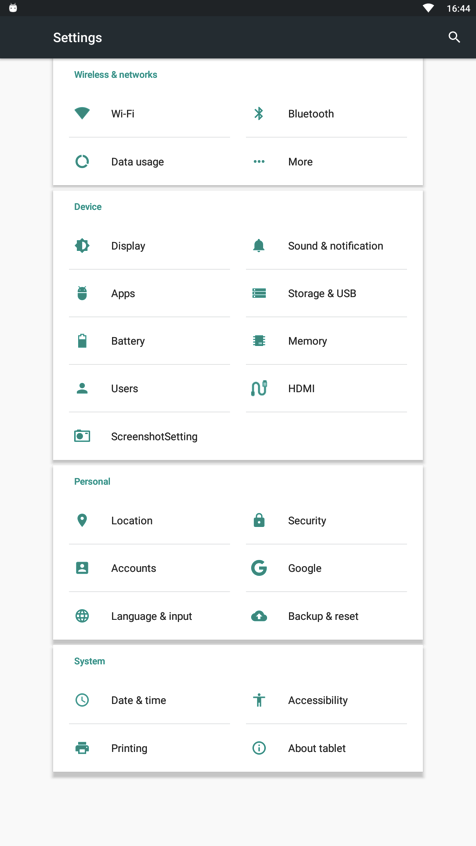
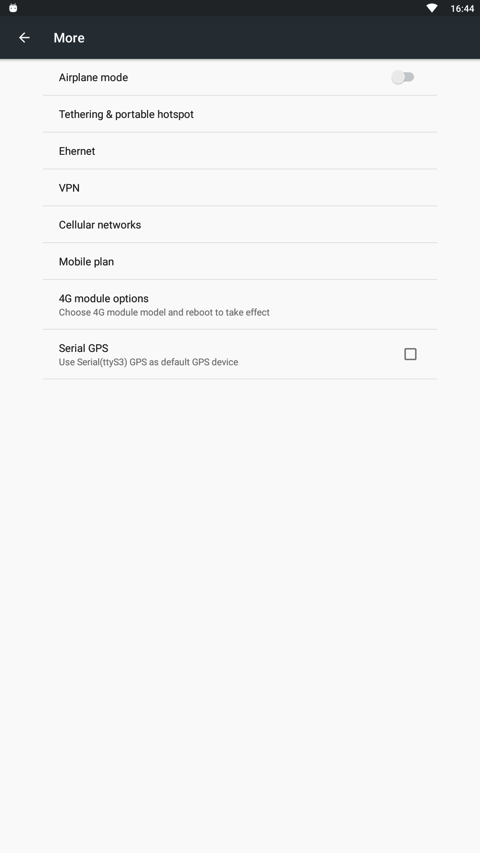
2. Configure the network settings on the kiosk:
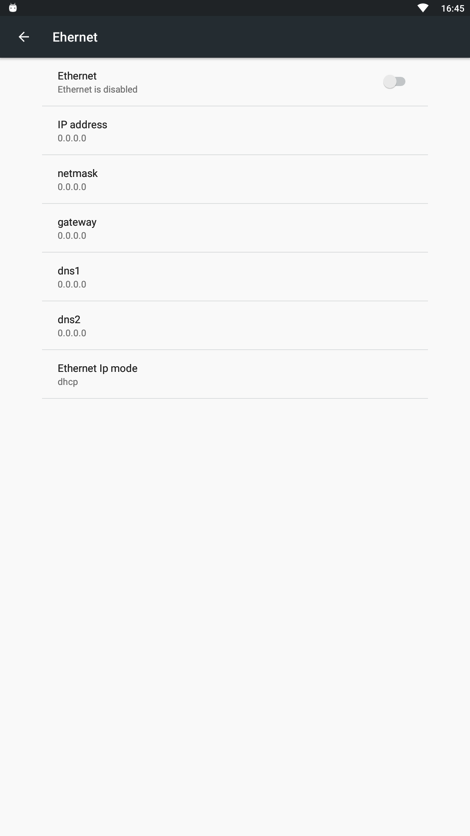
- Go to **Settings → More → Ethernet**
3. Activate the Ethernet connection.
4. Configure your **network-specific settings** (e.g. DHCP or static IP).
📌 **Recommendation:**
If you are using a wired Ethernet connection, we recommend **disabling Wi-Fi**.
[ ](https://help.sadevio.com/uploads/images/gallery/2026-01/pXKimage.png)
[](https://help.sadevio.com/uploads/images/gallery/2026-01/LKGimage.png)
[](https://help.sadevio.com/uploads/images/gallery/2026-01/bXximage.png)
#### Wi-Fi Connection (Optional)
If Ethernet is not available, Wi-Fi can be used.
1. Go to **Settings → Wi-Fi**
2. Enable **Wi-Fi**
3. Select the Wi-Fi network you want to connect to
4. Enter the password if required
5. Verify that the Wi-Fi connection is successfully established