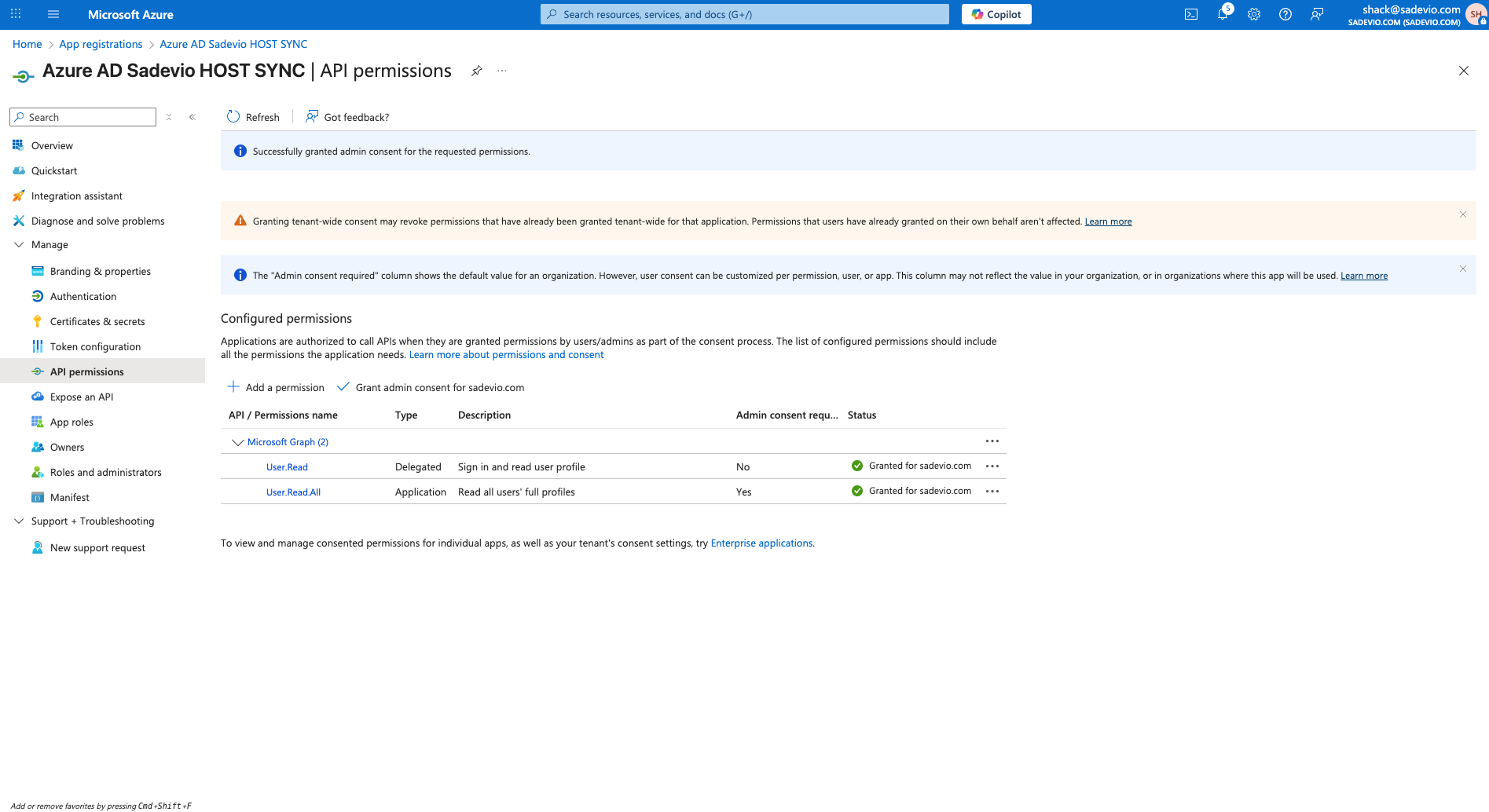
SCIM Host SYNC
Sadevio Configuration
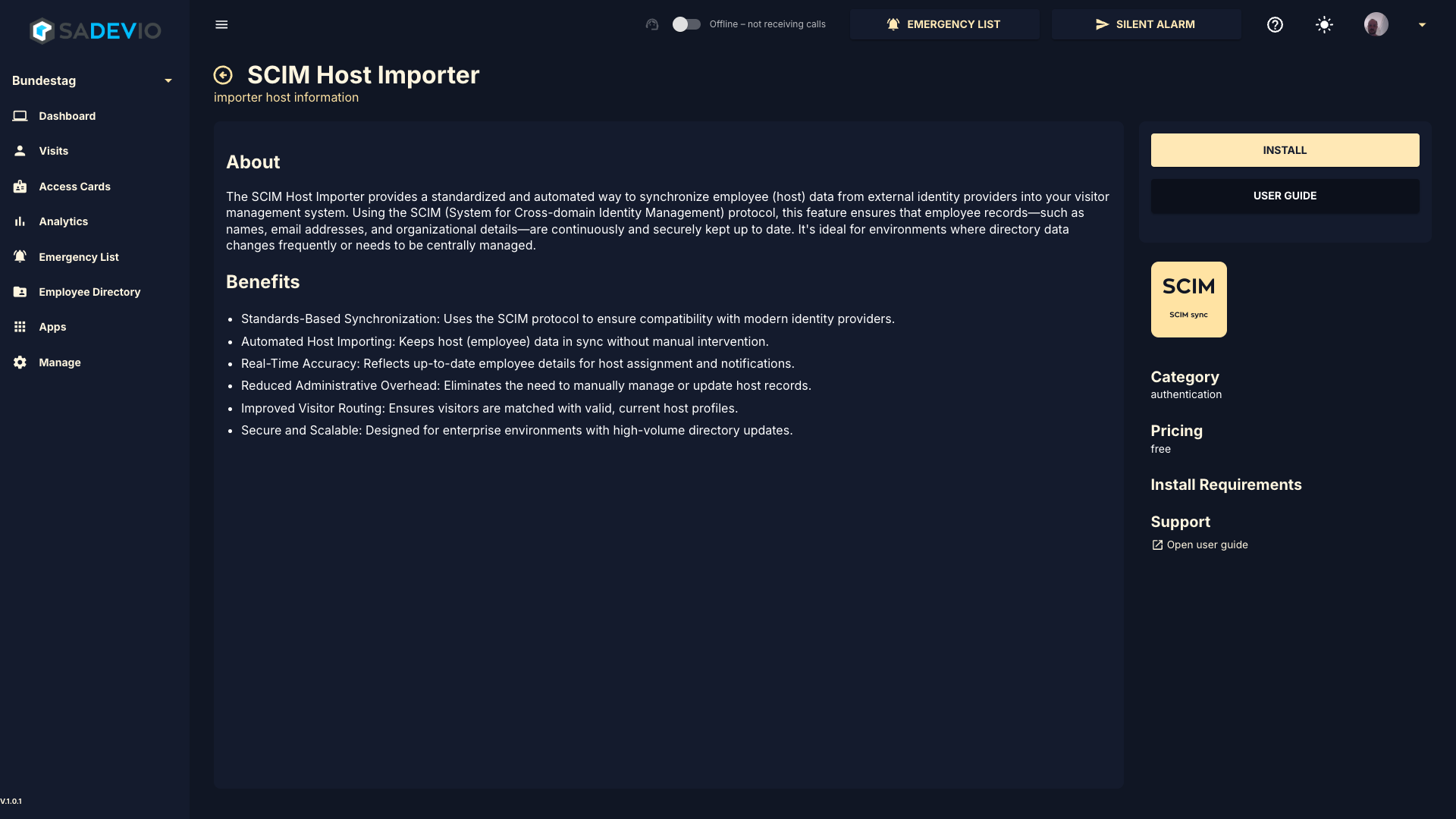
To activate the sadevio SCIM host synchronisation go to your application and go to Apps and select SCIM Host Sync. Install the application.
Azure AD credentials
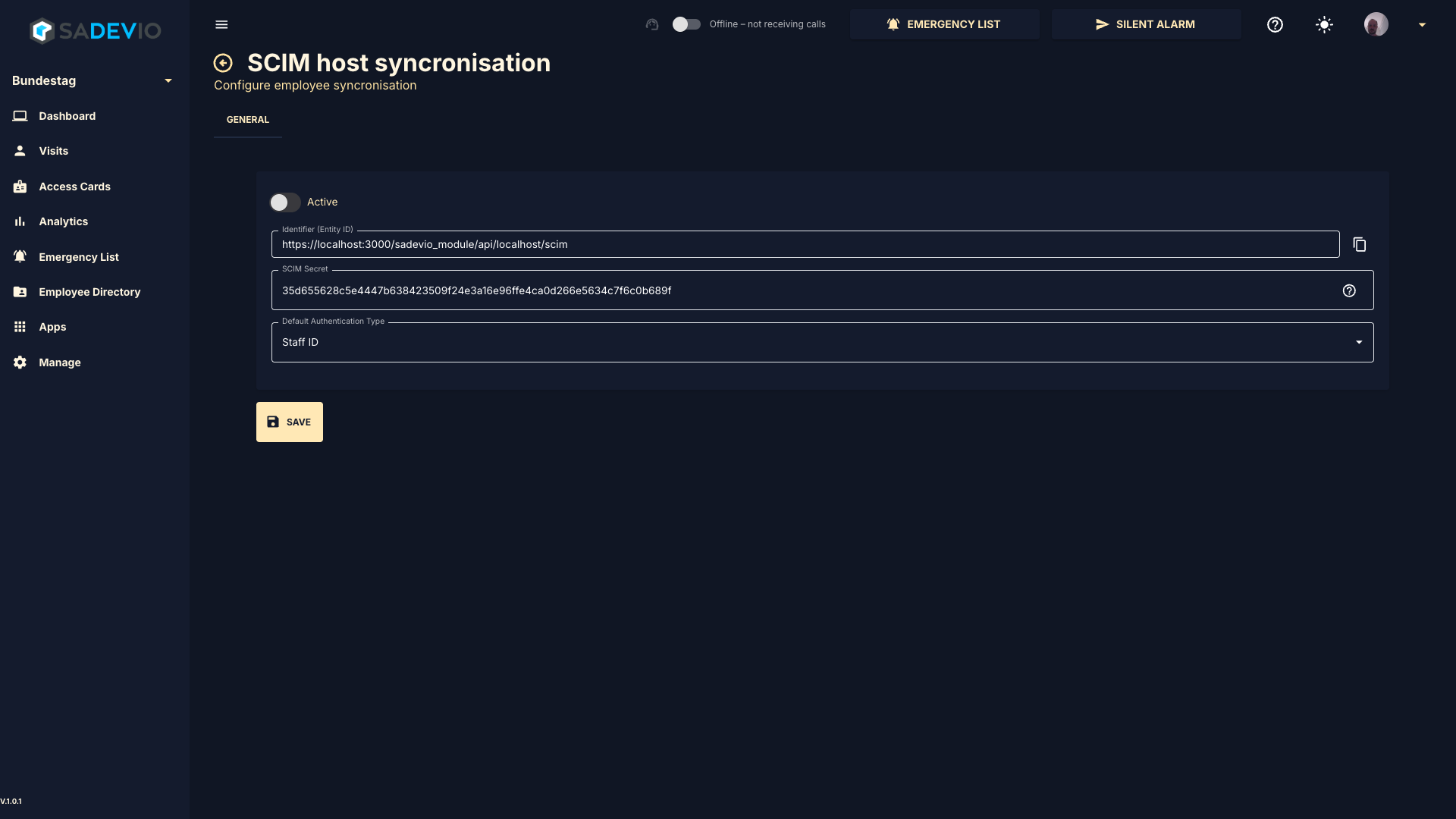
Application ID & Tenant ID
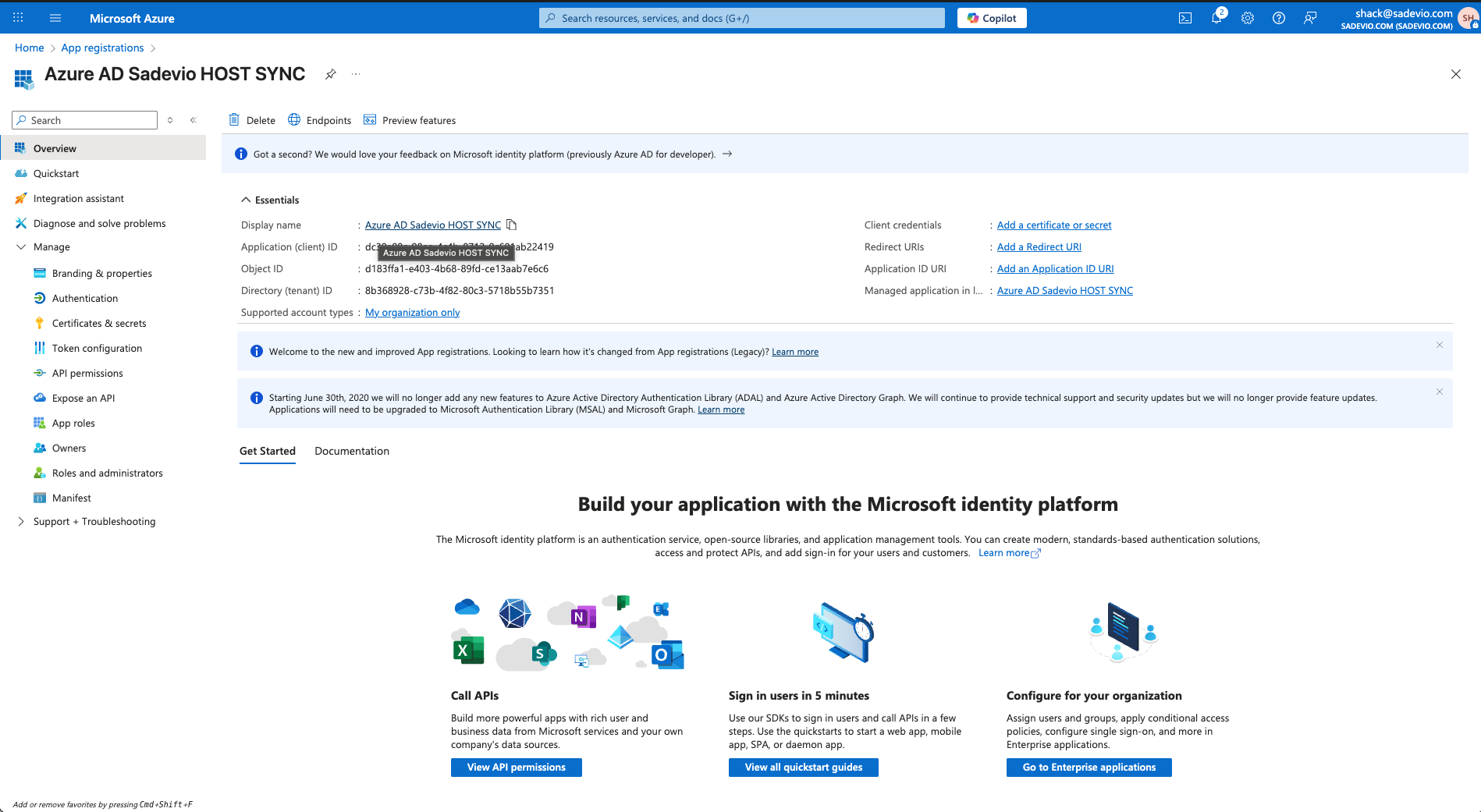
Copy the Application (client) ID and the Directory (tenant) ID
Application Secret
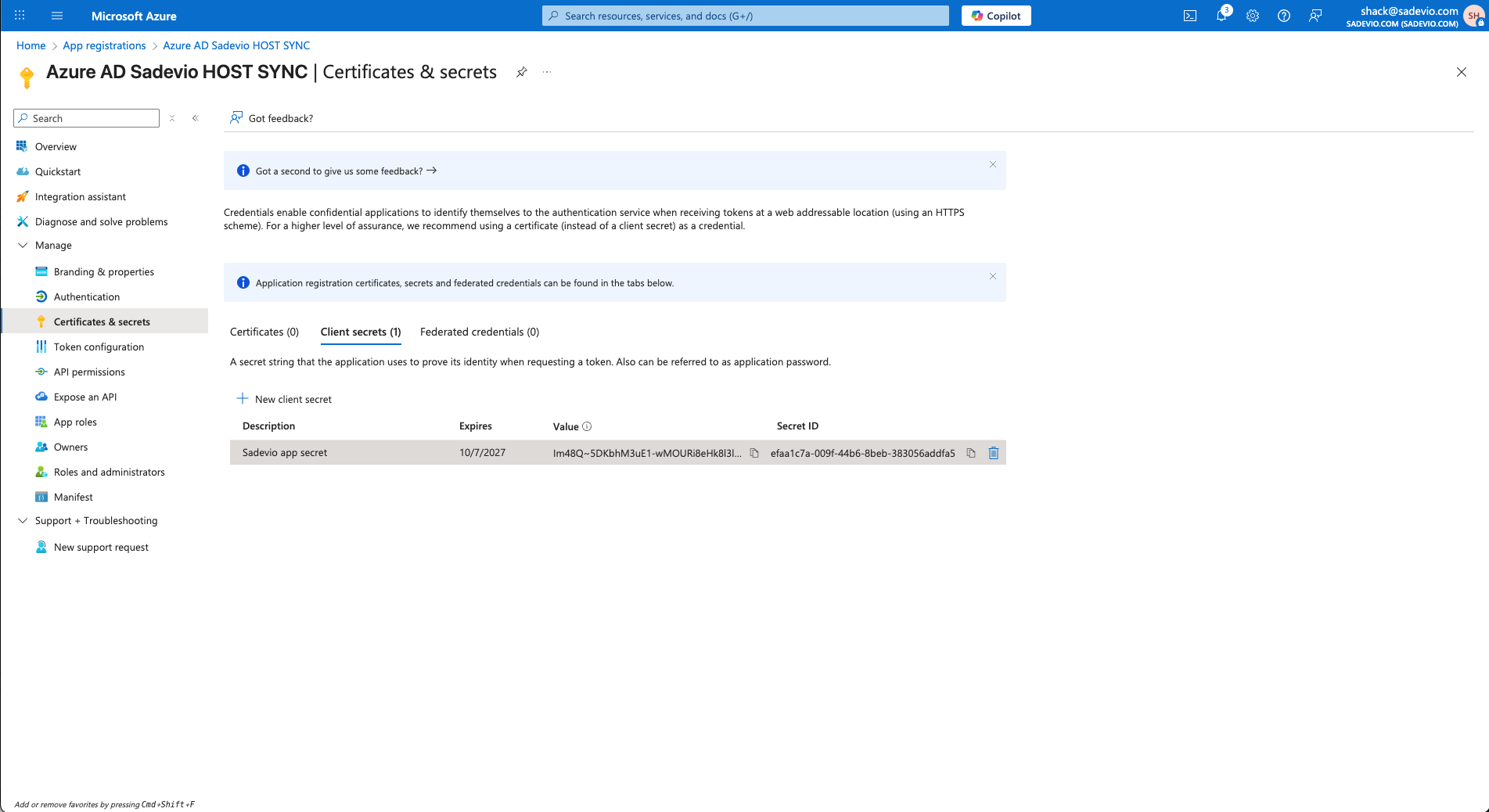
Copy the value part of your client secret
Disable missing hosts
The system will download the employee information from AD and all employees which are missing in this information will be disabled within SADEVIO
Test run configuration
The test run will give you a good indication if everything worked fine and your configuration is correct.
Azure Entra ID (Azure AD) – Employee syncronistaion
Step 1: Create an Enterprise Application
-
In the left menu, click "App registrations"
-
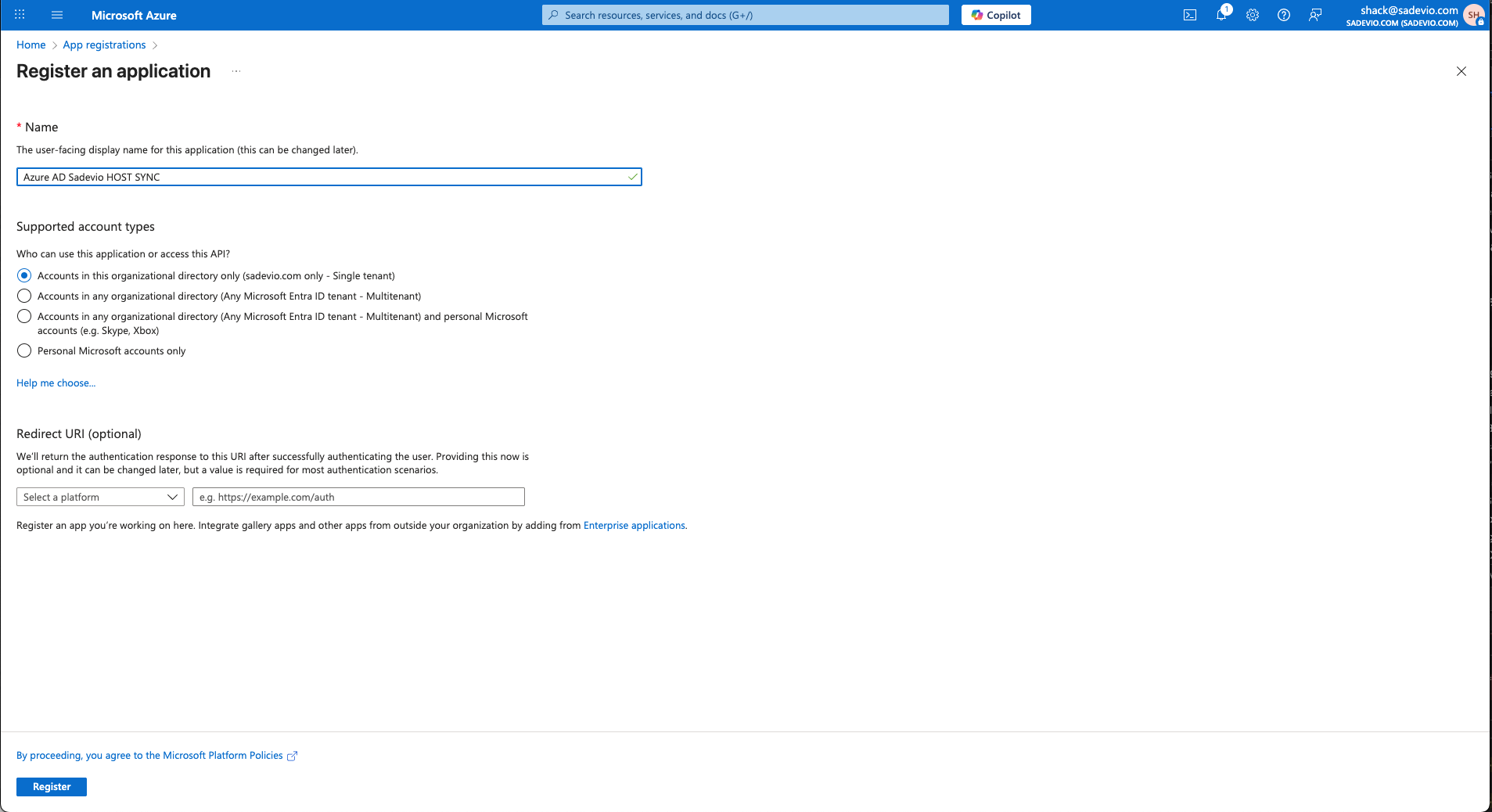
Click "+ New registration"
-
Select "Create your own application"
-
Enter a name (e.g.
Sadevio Employee SYNC) - Click Register
Step 2: Client Secret
-
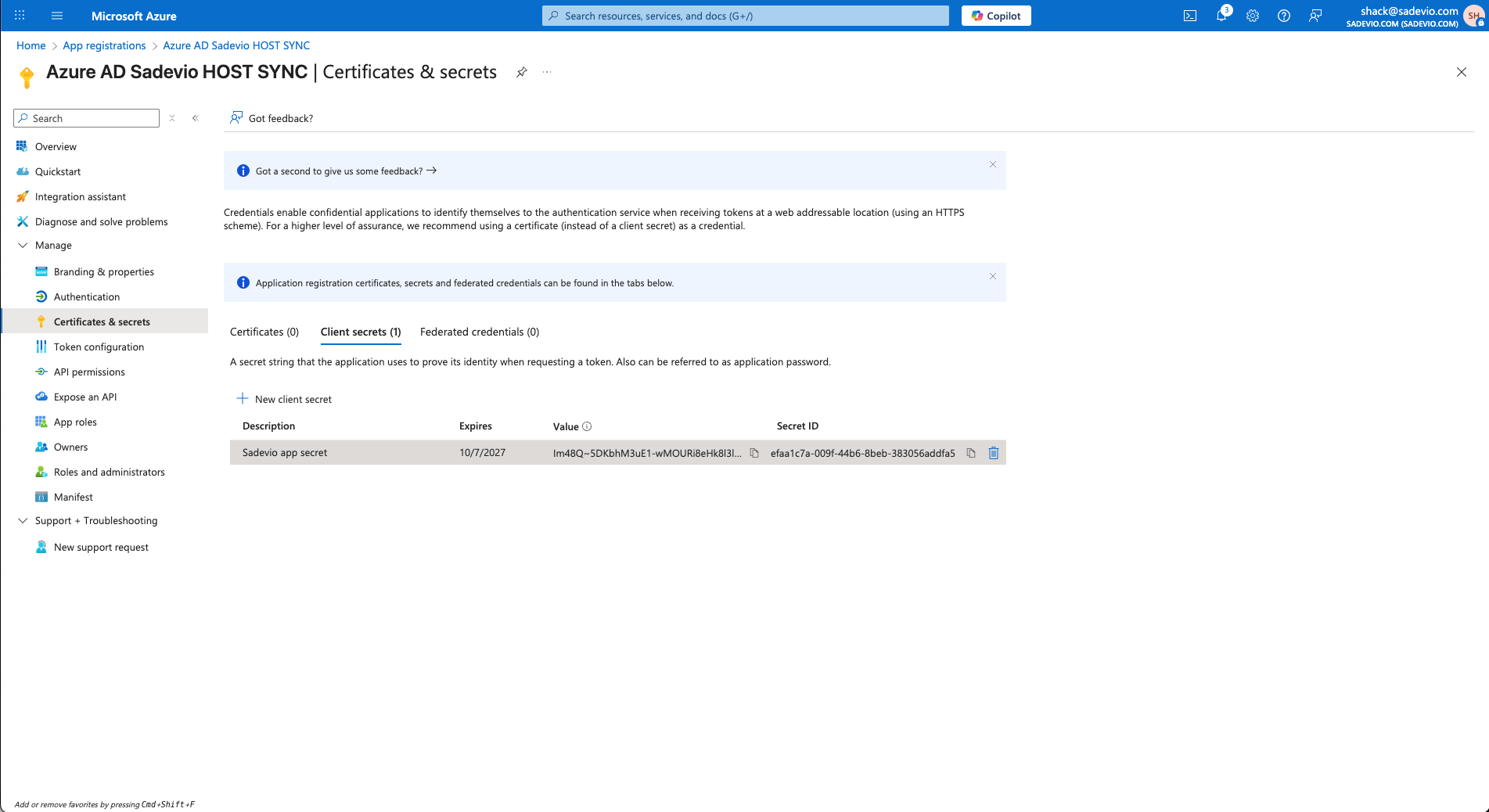
In the new app, go to "Manage" -> "Certificates & secrets"
-
Select New client secret
-
Give it a name which you like and an expiration date.
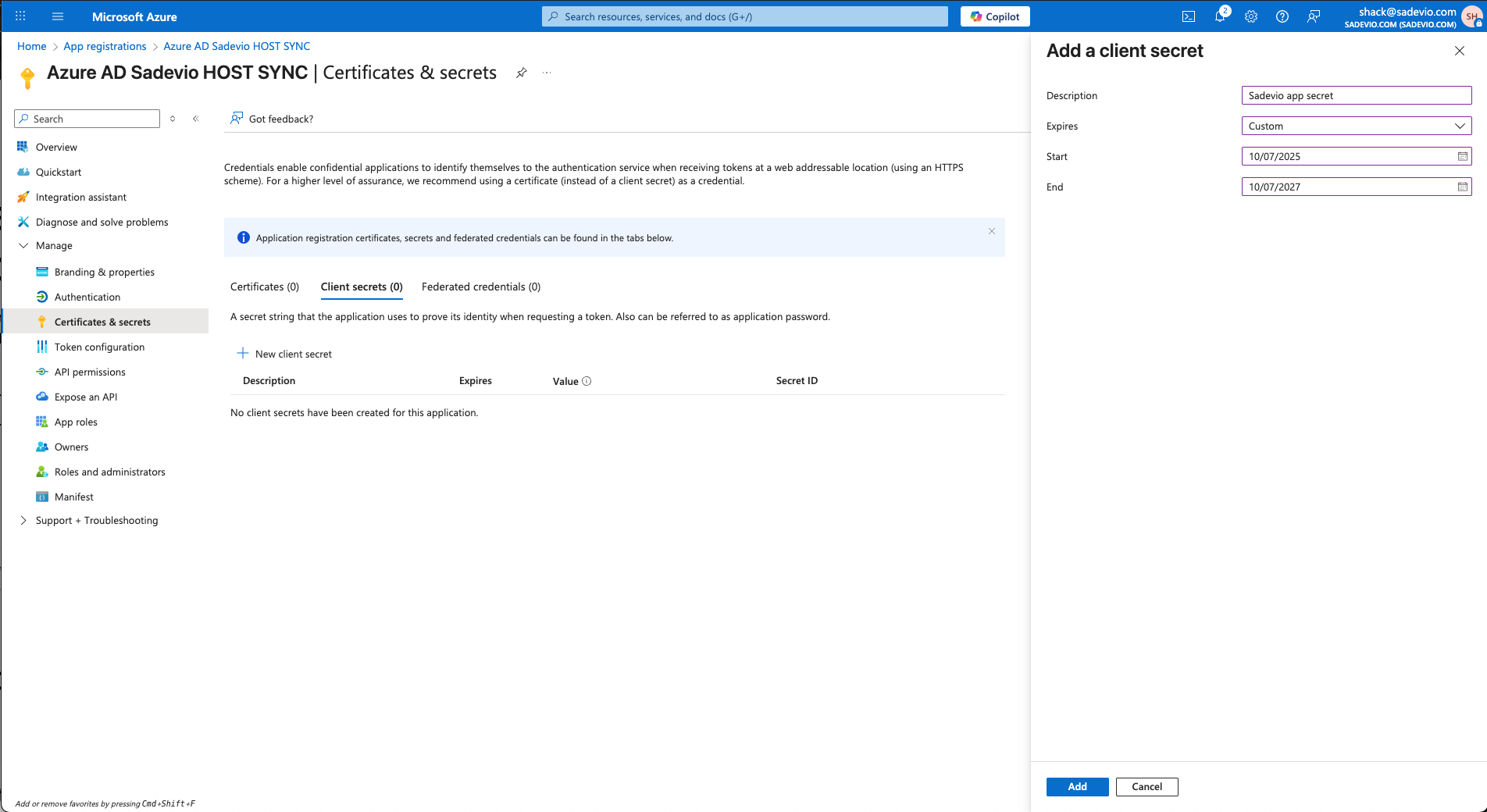
You will need to copy the "value" part to sadevio.
Step 3: Application permissions
- In the new app, go to "Manage" -> "API permissions"
-
Select "Add a permission"
-
Select Microsoft Graph
- Select Application permission
- Add permission User.Read.All
- Select "Add permission"
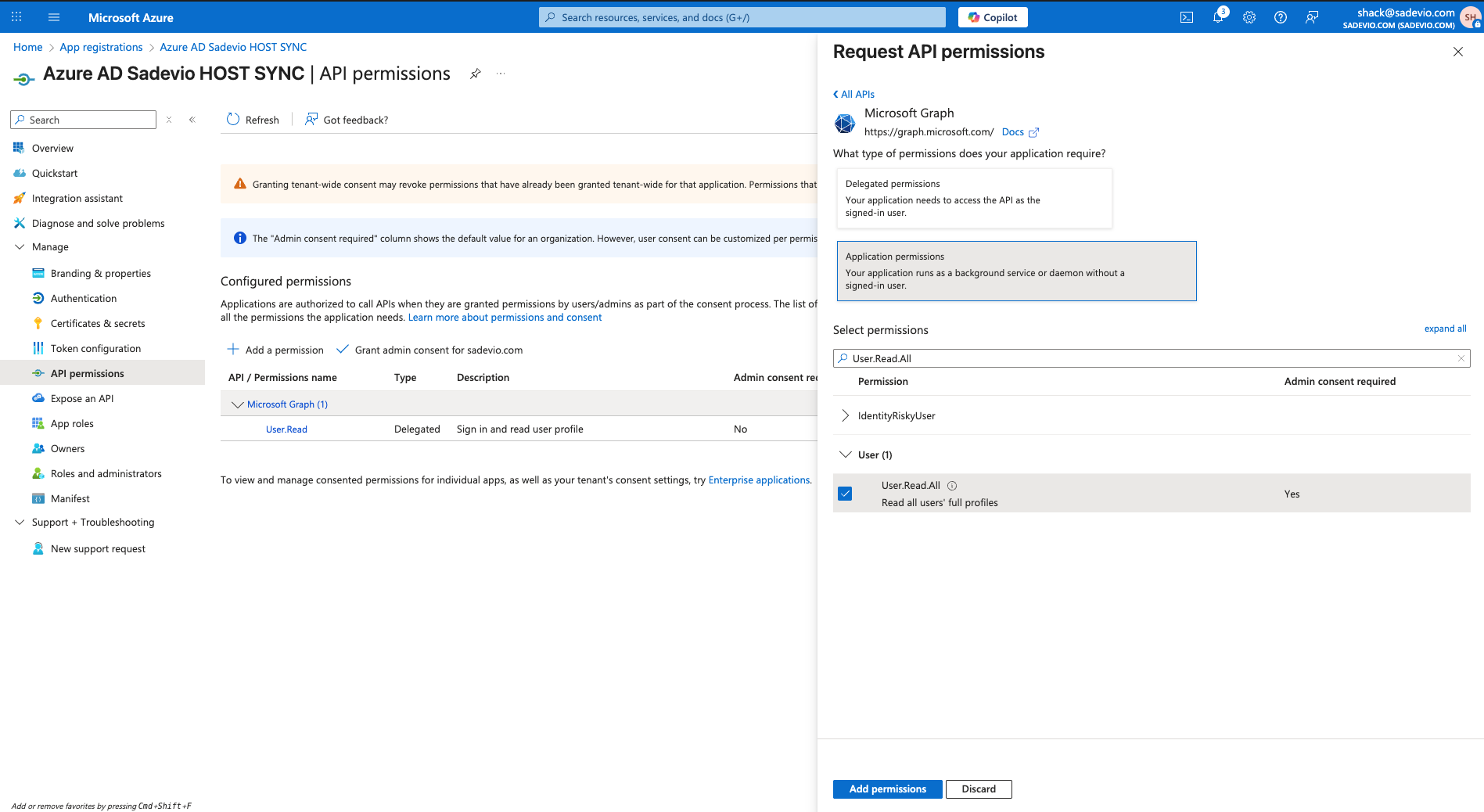
Select now "Grant admin consent for youDomain.com"