# Sadevio Configuration
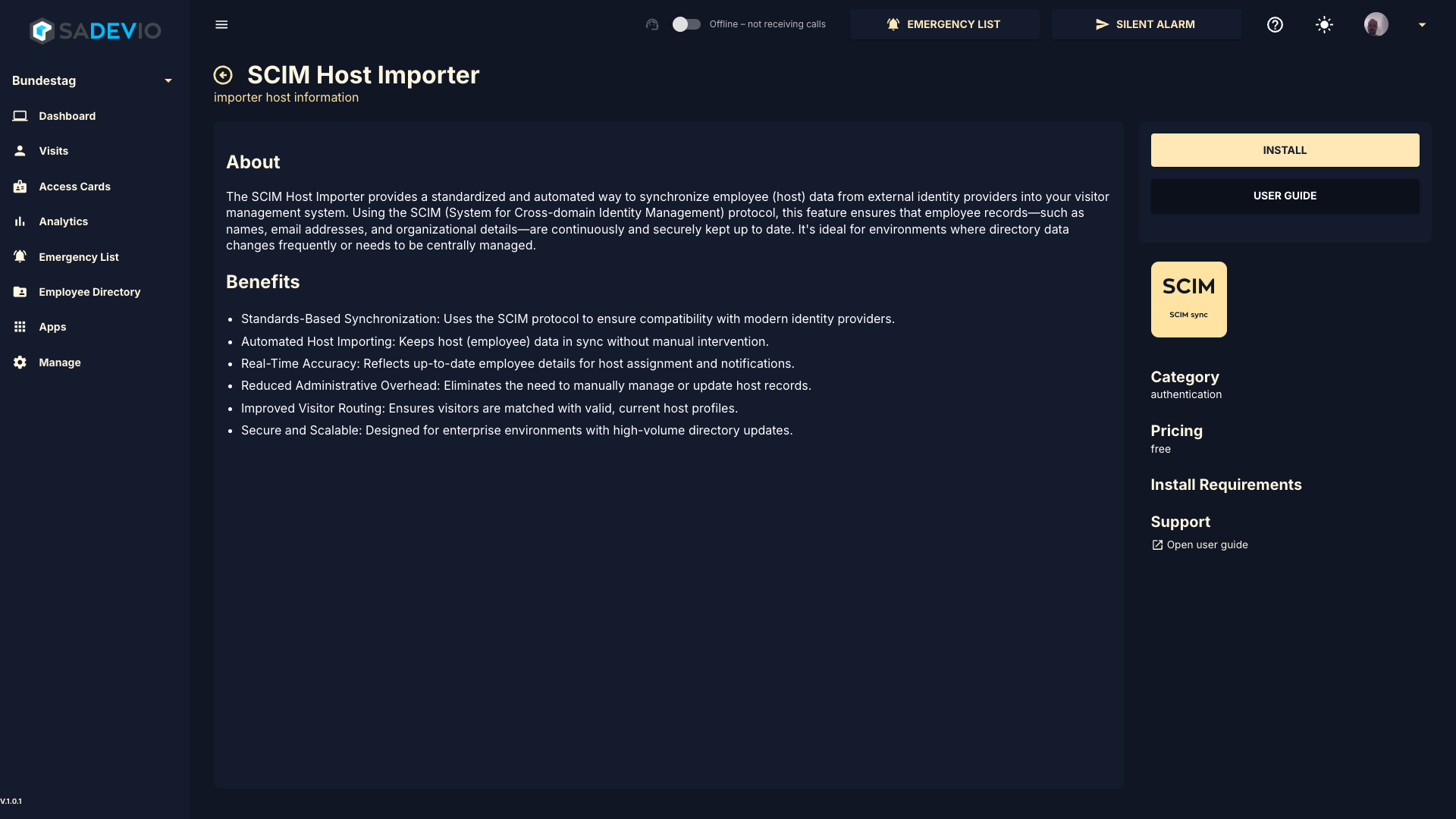
To activate the sadevio SCIM host synchronisation go to your application and go to Apps and select SCIM Host Sync. Install the application.
[](https://help.sadevio.com/uploads/images/gallery/2026-01/Pfhimage.png)
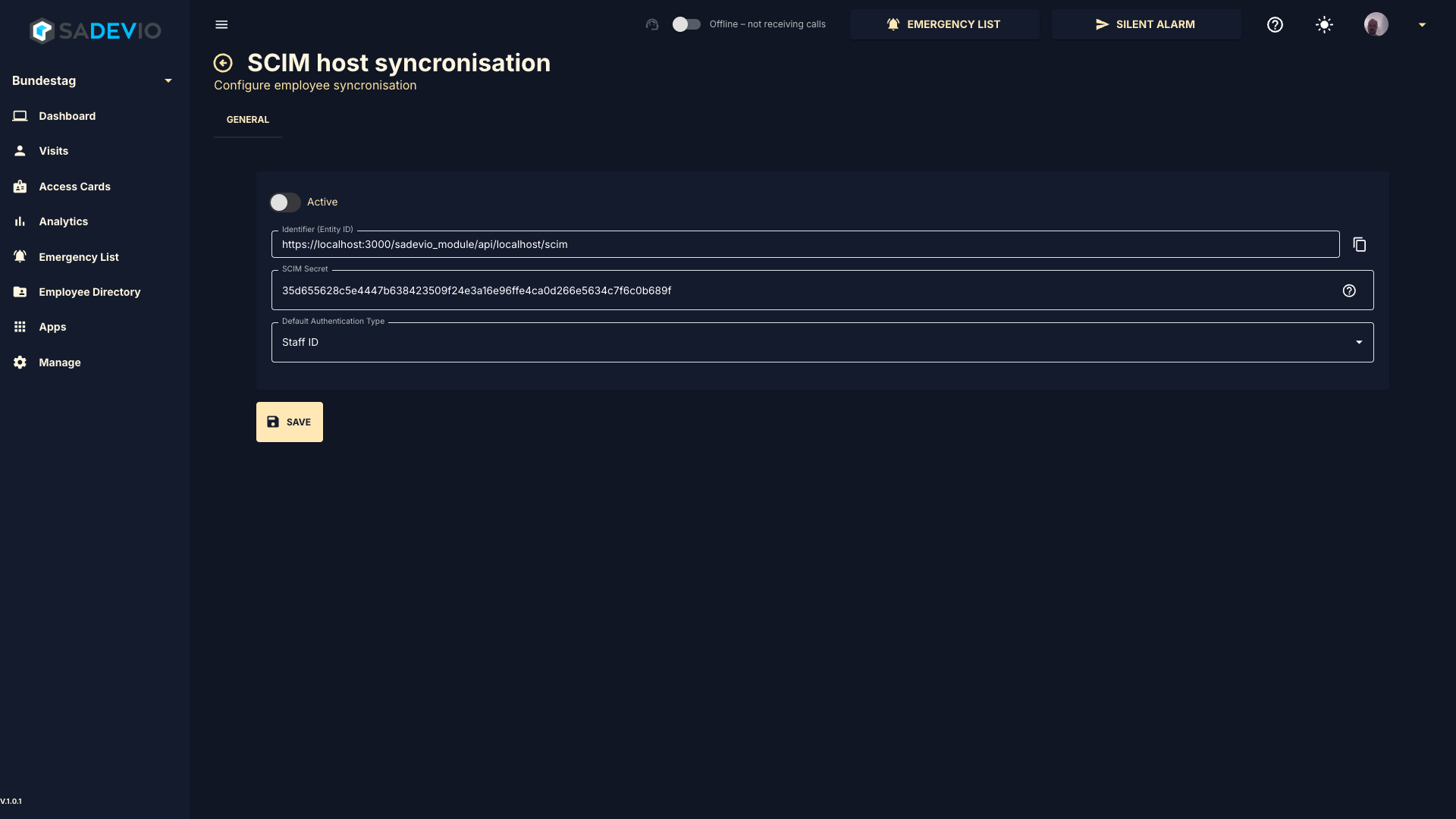
#### Azure AD credentials
Copy the needed information from your admin portal
[](https://help.sadevio.com/uploads/images/gallery/2026-01/tMjimage.png)
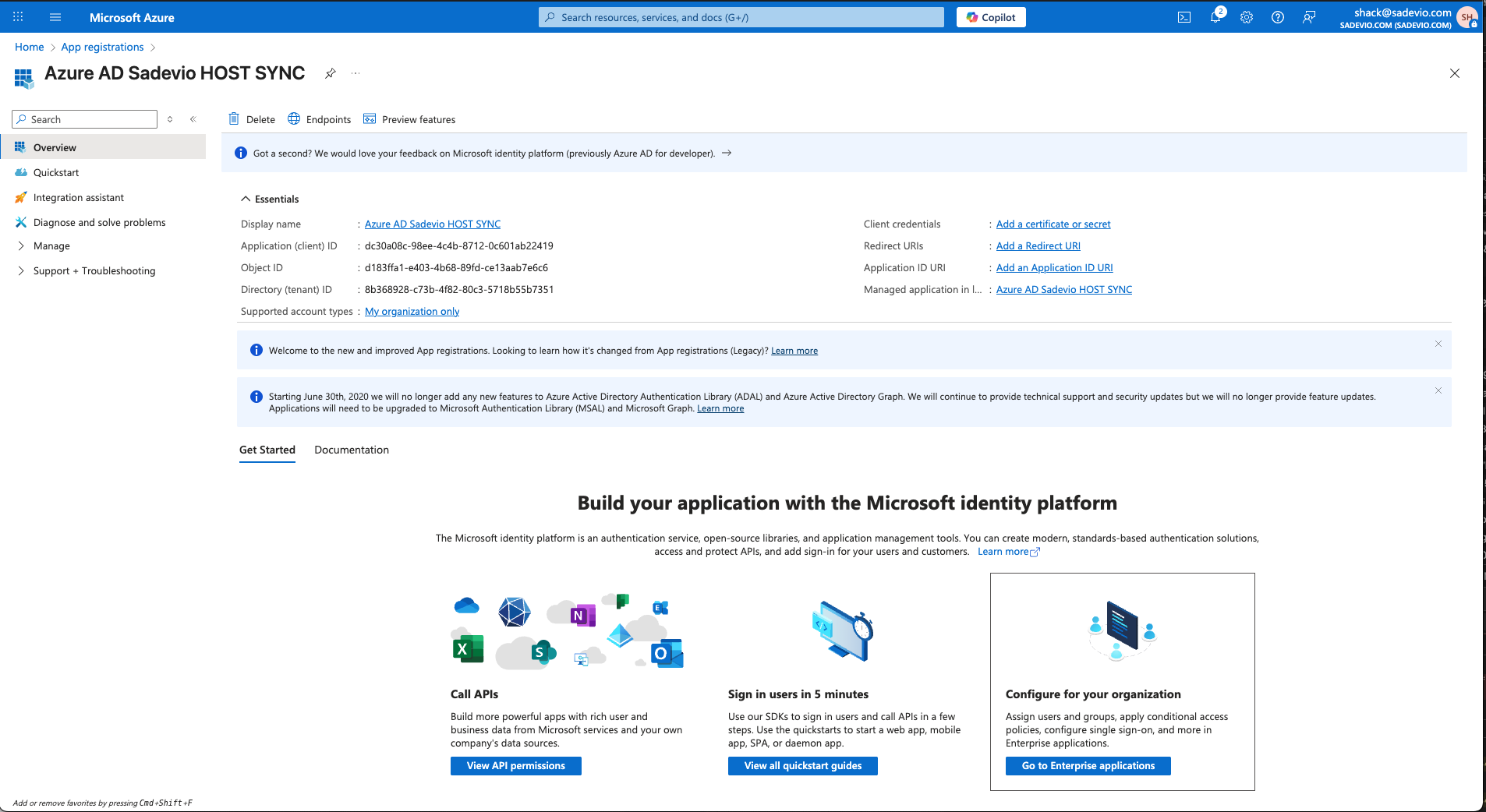
#### Application ID & Tenant ID
Copy the Application (client) ID and the Directory (tenant) ID
[](https://help.sadevio.com/uploads/images/gallery/2025-10/screenshot-2025-10-07-at-11-45-24-am.png)
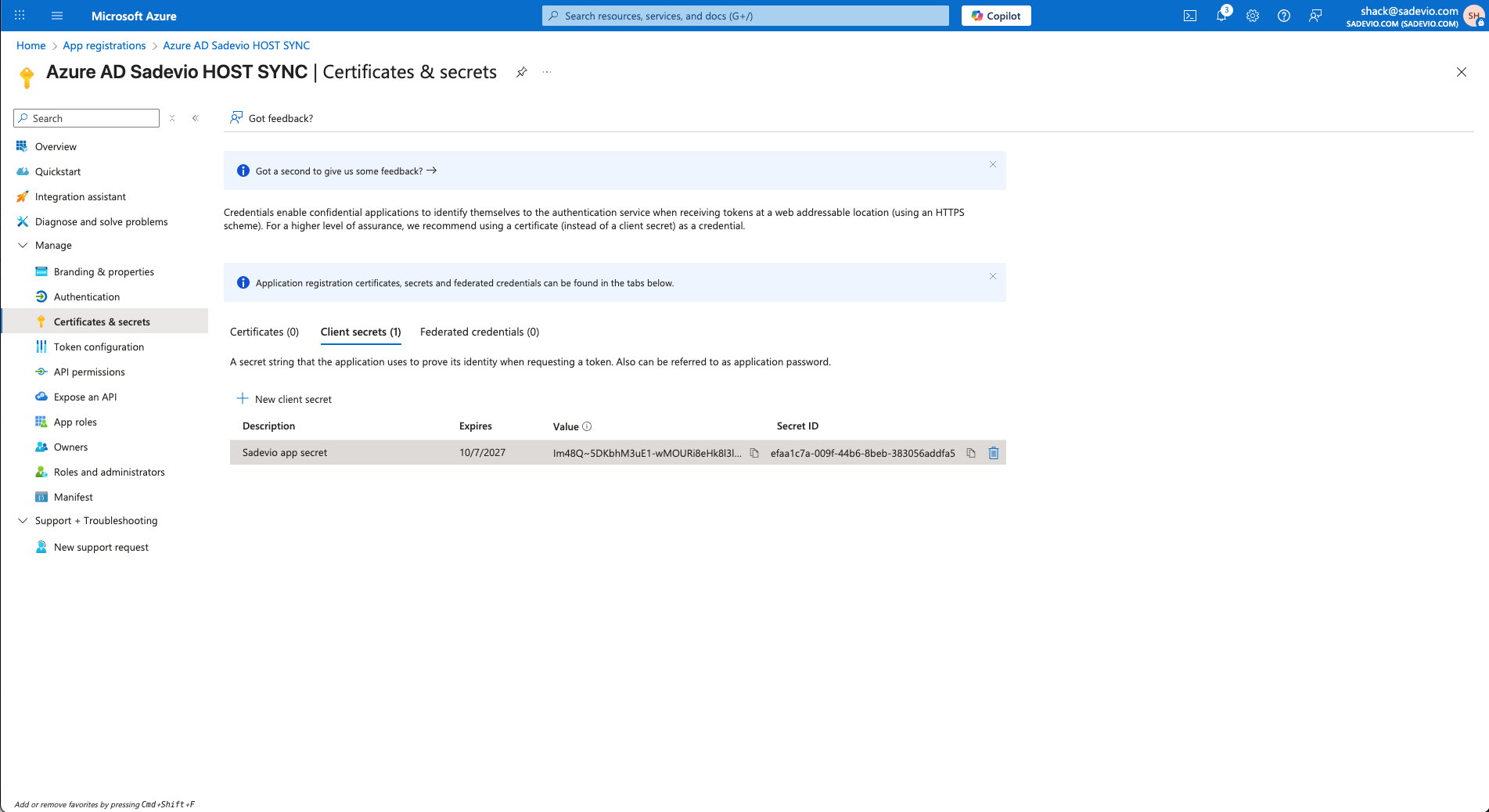
#### Application Secret
Copy the value part of your client secret
[](https://help.sadevio.com/uploads/images/gallery/2025-10/screenshot-2025-10-07-at-11-49-25-am.png)
#### Disable missing hosts
The system will download the employee information from AD and all employees which are missing in this information will be disabled within SADEVIO
#### Test run configuration
The test run will give you a good indication if everything worked fine and your configuration is correct.