# Configuration
The Siport to Schindler connector synchronizes changed Siport cardholders into Schindler. The connector reads users, cards, profiles, templates, and validity information from Siport and creates, updates, or removes the corresponding cardholder in Schindler.
The synchronization normally runs automatically in the background. Each run only reads changed Siport records since the last successful run.
#### ⚠️ Prerequisites
Before this connector can be used, the Schindler system and the Siemens Siport system must first be configured separately in the application apps section.
The Siport to Schindler connector does not contain the full connection settings for Siport or Schindler itself. Instead, it links two already configured systems:
- one existing Schindler integration
- one existing Siemens Siport integration
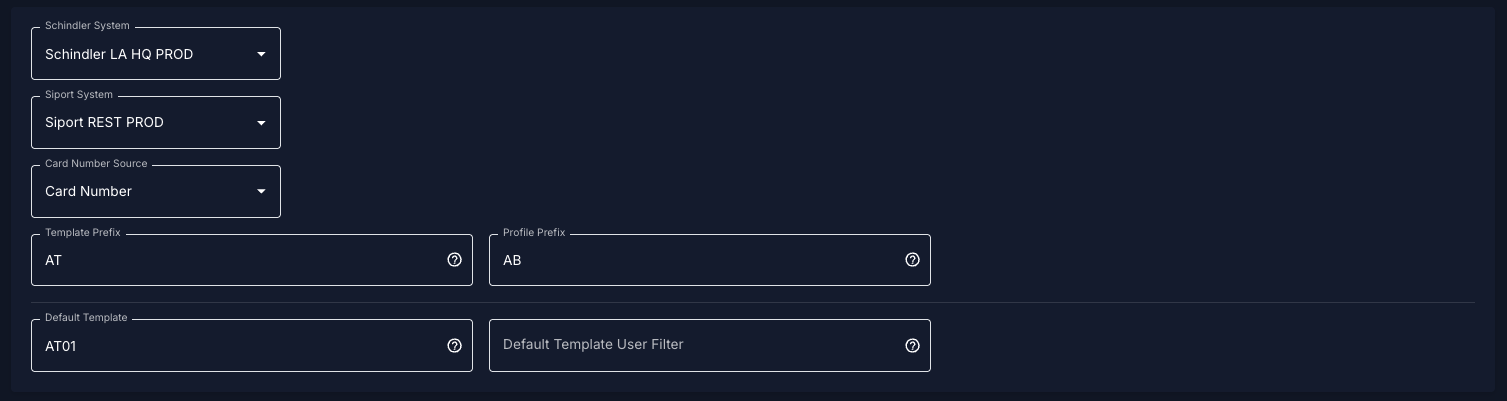
After both integrations have been created and tested, select them in the connector fields **Schindler System** and **Siport System**.
[](https://help.sadevio.com/uploads/images/gallery/2026-06/DLescreenshot-2026-06-23-at-12-12-14-pm.png)
#### Connect Systems
##### [Schindler System](https://help.sadevio.com/books/schindler-integration)
Select the Schindler access system that should receive the synchronized users.
The selected Schindler system must contain the Schindler REST API configuration, the Schindler templates, the Schindler access profiles, and the credential type used for card identities.
##### [Siport System](https://help.sadevio.com/books/siemens-siport "Siemens Siport")
Select the Siport system that should be used as the source system.
The selected Siport system must contain the Siport REST API configuration, the correct Siport server timezone, and the cardholders, cards, profiles, and free fields used by the integration.
The Siport server timezone is important because Siport lastChanged filtering uses the local Siport server time.
#### Card Number Source
This setting defines which Siport card field is used as the Schindler credential.
**Option**
**Meaning**
Card Number
Uses the Siport card number.
UID Value
Uses the Siport UID value of the card.
The selected value is used as the Schindler card identity for normal card users.
Example: If Card Number is selected and the Siport card number is `123456`, the Schindler user is created or updated using `123456`.
Example: If UID Value is selected and the Siport UID is `04AABBCC`, the Schindler user is created or updated using `04AABBCC`.
#### Template Prefix
The template prefix defines which Siport profiles should be interpreted as Schindler templates.
Example:
`Template Prefix: AT`
If a Siport user has a profile called:
`AT01`
the connector treats `AT01` as a Schindler template name.
The template must exist in Schindler with the same name. If the template does not exist in Schindler, it is skipped.
#### Profile Prefix
The profile prefix defines which Siport profiles should be interpreted as additional Schindler access profiles.
Example:
`Profile Prefix: AB`
If a Siport user has a profile called:
`AB01`
the connector tries to assign the matching Schindler access profile.
For Schindler profile matching, the connector uses this format:
`Siport profile name - Siport profile description`
Example:
`AB01 - Main Entrance`
The matching access profile must exist in Schindler.
#### Default Template
The default template is an optional fallback template.
Example:
`Default Template: AT01`
The default template is added as a template candidate when it applies to the user.
If no template profile from Siport matches the configured template prefix, the default template can still be used to create the user in Schindler.
The default template must exist in Schindler.
#### Default Template User Filter
The default template user filter limits when the default template applies.
This field uses a regular expression matched against the Siport personnel number.
If this field is empty, the default template applies to all users.
Example:
`^EMP.*`
This means the default template only applies to users whose personnel number starts with `EMP`.
**Important:** This filter only controls the default template. It does not block Siport templates that are assigned directly to the user.
Example:
`Default Template: AT05`
`Default Template User Filter: ^EMP.*`
User:
`Personnel Number: EXT1001`
`Siport Template: AT02`
Result:
`AT05` is not applied because `EXT1001` does not match `^EMP.*`. `AT02` can still be used because it was assigned directly in Siport.
#### Template Selection Rules
A user can have multiple template candidates.
Template candidates can come from Siport profiles matching the template prefix and from the configured default template, if the default template applies.
If multiple templates are available, the connector sorts the template names alphabetically and uses the highest one.
Example:
`AT01`
`AT03`
`AT05`
Selected Schindler template:
`AT05`
Because the sorting is alphabetical, use consistent numbering.
**Recommended**
**Avoid**
`AT01`
`AT02`
`AT10`
`AT1`
`AT2`
`AT10`
#### Profile Merge Rules
A Schindler template can already contain access profiles.
When the connector selects the final template, it builds the final Schindler profile list in this order:
1. Profiles from the selected Schindler template.
2. Profiles from lower-priority assigned templates.
3. Additional Siport profiles matching the profile prefix.
Duplicate profiles are only added once.
Example configuration:
`Template Prefix: AT`
`Profile Prefix: AB`
`Default Template: AT05`
`Default Template User Filter: empty`
Siport user profiles:
`AT01`
`AB03`
Schindler templates:
`AT01 contains profile: Floor 1`
`AT05 contains profile: Main Entrance`
Result:
`Selected Schindler template: AT05`
Final profiles:
`Main Entrance`
`Floor 1`
`AB03 - configured description`
#### Required Template Rule
A normal user needs a valid Schindler template.
The template can come from a Siport profile matching the template prefix or from the default template.
If no valid template is found, new users are skipped and existing users may be removed from Schindler.
Additional profile-prefix profiles alone are not enough. They are added only after a valid template has been selected.
#### Normal Card Users
For normal users, the connector uses the selected card number source to identify the Schindler cardholder.
The connector ignores virtual cards.
If the Siport cardholder and card are active, the connector checks whether the user exists in Schindler. If the user does not exist, it creates the user. If the user exists, it updates the user. The selected template and merged profiles are applied.
If the Siport cardholder or card is locked, the connector removes the corresponding user from Schindler, if it exists.
#### QR Code Users
A user is handled as a QR code user when the Siport personnel number starts with:
`QR`
For QR users, the connector reads the QR value from the configured Siport free definition field.
The QR code value is converted to hexadecimal and assigned in Schindler as:
`third-party-qr`
QR users are identified in Schindler by the Siport personnel number.
If no QR value is found, the user is not created.
#### Validity Dates
The connector uses the Siport cardholder validity dates:
- `validFrom`
- `validTo`
These dates are converted using the Siport server timezone.
The resulting validity is sent to Schindler.
For QR users, auto-delete is enabled in Schindler.
#### Last Run / Delta Synchronization
The connector stores the last successful synchronization time in:
`Sync Last Run`
The value is stored in this format:
`yyyyMMddHHmmss`
Example:
`20260618095310`
On the next run, the connector asks Siport only for changed records:
`lastChanged >= Sync Last Run`
The `>=` comparison is intentional. It protects against losing records that changed exactly at the boundary time.
This can cause the same user to be processed again, but this is safer than missing a change.
The last run time is stored using the configured Siport server timezone.
#### Auto Synchronize Credentials
When enabled, the connector runs automatically in the scheduler.
The scheduler checks active access systems regularly and starts the Siport to Schindler process if no sync for the same connector is already running.
Only one sync for the same access system should run at the same time.
#### Failure Behavior
The connector should only advance `Sync Last Run` after a successful run.
If Siport authentication fails or Schindler is not reachable, the connector must not update `Sync Last Run`. This ensures that the same Siport changes are retried during the next run.
#### Configuration Example
Siport profiles:
`AT01`
`AB03`
Connector configuration:
`Template Prefix: AT`
`Profile Prefix: AB`
`Default Template: AT05`
`Default Template User Filter: empty`
`Card Number Source: Card Number`
Schindler templates:
`AT01`
`AT05`
Schindler profiles:
`Profiles from AT05`
`Profiles from AT01`
`AB03 - Example Description`
Result:
The user is created or updated in Schindler. The selected template is `AT05`. Profiles from `AT05` are applied first. Profiles from `AT01` are added. The additional profile `AB03` is added. Duplicates are ignored.
#### Recommended Naming
Use clear and consistent template and profile names.
Recommended template naming:
`AT01`
`AT02`
`AT03`
`AT10`
Recommended profile naming:
`AB01`
`AB02`
`AB03`
Avoid mixed numbering such as:
`AT1`
`AT2`
`AT10`
Template selection is alphabetical, not numeric.